


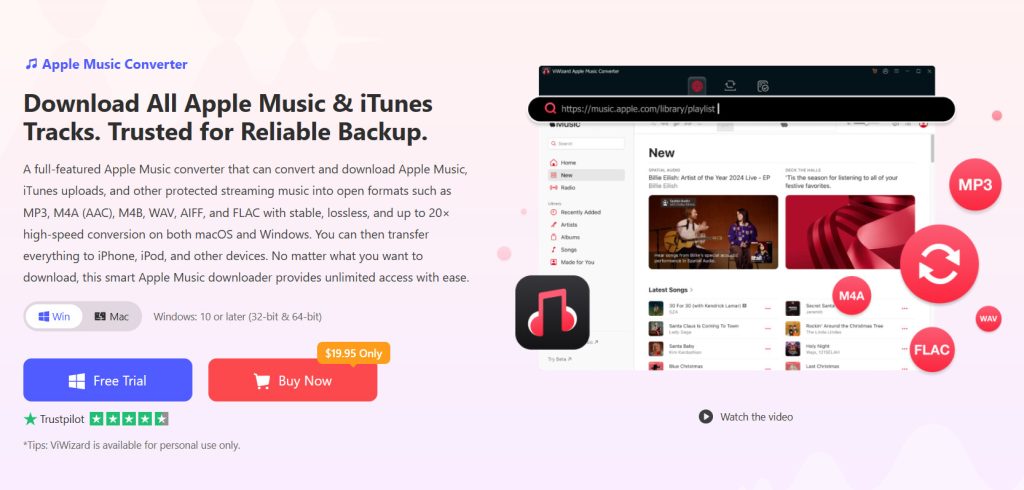
Apple Music offers a vast library of over 100 million songs, but its DRM protection creates significant limitations for users who want true ownership of their music. Downloaded Apple Music tracks are stored in the protected M4P format, which restricts playback to authorized Apple devices and becomes inaccessible if you cancel your subscription. This is where ViWizard Apple Music Converter provides a solution, enabling you to convert Apple Music to MP3 and transfer your music to iOS devices for permanent, unrestricted playback.
Why Convert Apple Music to MP3?
Contents
Converting Apple Music to MP3 format offers several key benefits. MP3 is one of the most universal audio formats, compatible with virtually any device, media player, or car audio system. By converting your tracks, you can break free from Apple’s ecosystem and enjoy your music on MP3 players, Android devices, USB drives, and more. Converting Apple Music to MP3 also serves as a reliable backup solution—your music remains accessible even after your subscription ends, preventing loss of your carefully curated library.
Introducing ViWizard Apple Music Converter: Best Downloader for Apple Music
ViWizard Apple Music Converter (one of the best downloaders for Apple Music) is a professional tool designed specifically to remove DRM from Apple Music tracks and convert them to open formats like MP3, M4A, M4B, WAV, FLAC, and AIFF. It includes a built-in Apple Music Web Player, allowing direct access to your library and the Apple Music catalog without needing the official app.
Key Features for Users
High-Quality MP3 Conversion: ViWizard converts Apple Music to MP3 at up to 320 Kbps, preserving the original audio quality of Apple Digital Masters, including 24-bit studio-quality sound. You can also customize output settings like bit rate, sample rate, and channels for personalized audio.
Fast Batch Processing: Up to 30 times. The converter uses advanced multi-thread technology to process multiple tracks simultaneously, converting a 50-track playlist in just minutes.
Metadata Preservation: ID3 tags such as title, artist, album, and artwork are automatically retained, keeping your music library organized.
Free Lifetime Updates: ViWizard continuously updates its conversion engine to ensure compatibility and provides responsive customer support.
Step-by-Step Guide: Convert Apple Music to MP3
Before getting started, install ViWizard Apple Music Converter on your Windows PC or Mac.

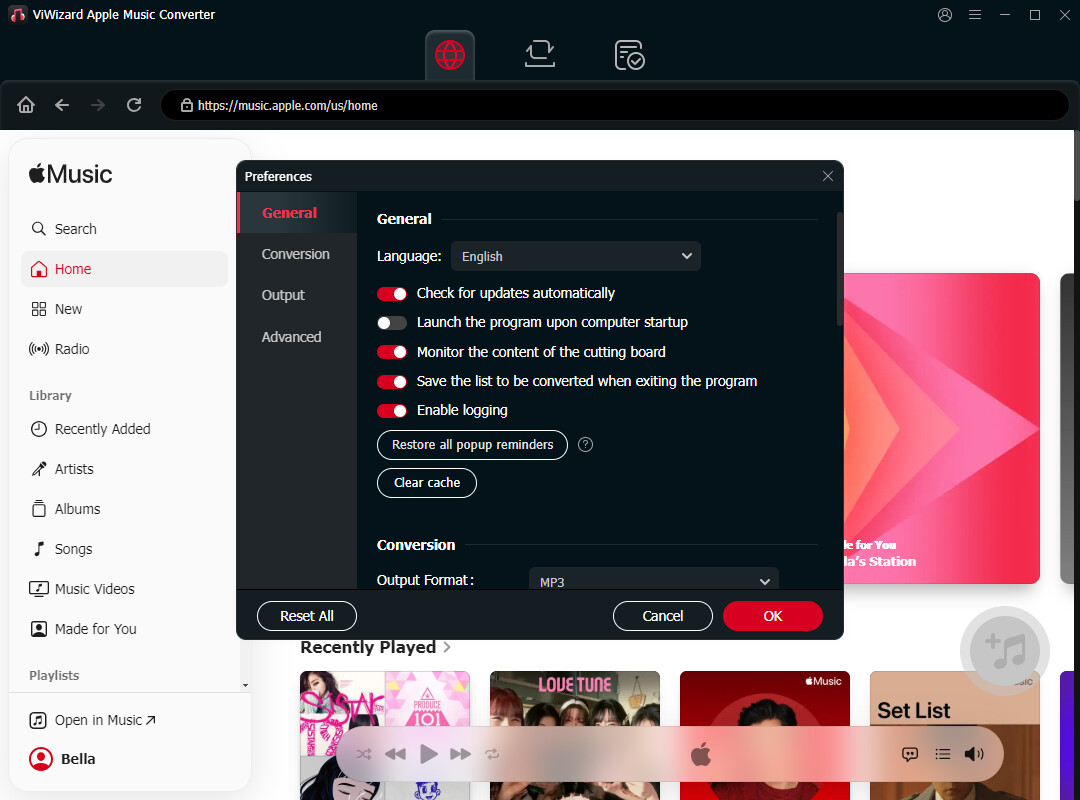
Step 1. Sign In to Apple Music
Launch ViWizard Apple Music Converter and sign in with your Apple Music account. The program provides access to Apple Music through its integrated web player, allowing you to browse your library and find the songs, albums, or playlists you want to convert.
Step 2. Choose MP3 as the Output Format
Open the program’s Preferences or output settings. Select MP3 as the output format. You can also customize options such as bitrate, sample rate, output folder, and file naming.
MP3 is a practical choice when you want broad compatibility with smartphones, tablets, computers, car stereos, and other music players.
Step 3. Add Apple Music Songs
Browse Apple Music and select the tracks, albums, or playlists you want to download. Click the Add Music button (button +) to add your selections to the conversion list.
ViWizard supports batch conversion, so you can process multiple songs or an entire playlist instead of converting each track individually.
Step 4. Convert Apple Music to MP3
After checking your selected songs and output settings, click Convert. ViWizard will download and convert the selected Apple Music tracks into MP3 files.
When the process finishes, open the output folder to find your converted music. The program also provides a History section where you can locate previously converted tracks.
How to Save Apple Music MP3 Files to Your iPhone or iPad
Once you have MP3 files on your computer, you can transfer them to your iOS device. One straightforward option is to use Finder on Mac or Apple Devices on Windows, depending on your computer and setup.
First, connect your iPhone or iPad to your computer with a USB cable. Import the converted MP3 files into your computer’s music library if necessary, then sync the selected music to your iPhone or iPad.
Alternatively, you can store the MP3 files in iCloud Drive and access them through the Files app on your iPhone or iPad. This is useful if you simply want the files available locally rather than adding them to the Apple Music library.
Remember that ordinary MP3 files and Apple Music’s in-app downloads are handled differently. Apple Music downloads remain managed by the Music app, while converted MP3 files can be handled as regular audio files.
Conclusion
ViWizard Apple Music Converter provides a practical solution for downloading Apple Music to MP3 and saving it to your iOS device. By removing DRM restrictions, it enables permanent ownership of your music library, cross-device compatibility, and the freedom to enjoy your favorite tracks anywhere without subscription limitations. With its user-friendly interface and fast conversion speeds, it’s an effective tool for music enthusiasts who want complete control over their Apple Music collection.