


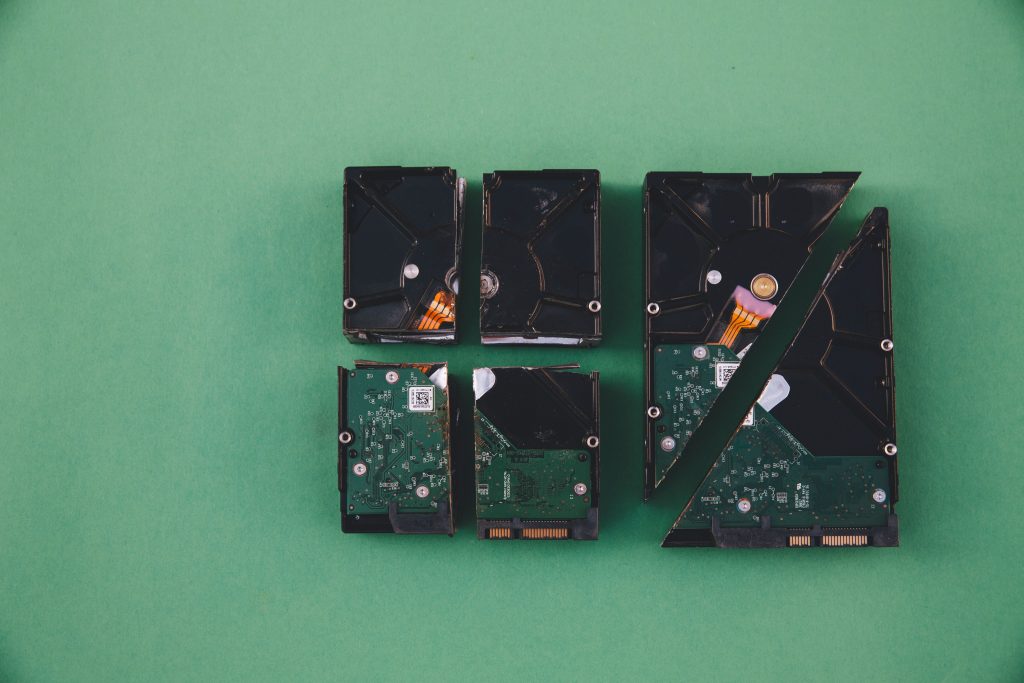
Can you recover data from a broken RAID?
Contents
- Can you recover data from a broken RAID?
- RAID Is Not Backup, And That Misunderstanding Is Expensive
- RAID Level Comparison: Recovery Difficulty at a Glance
- What Happens When a RAID Fails?
- The 7 Things You Must NOT Do After a RAID Failure
- How to Identify Your RAID Failure Type
- Step-by-Step RAID Data Recovery
- Step 1: Stop Using the RAID Immediately
- Step 2: Assess Drive Health with SMART Monitoring
- Step 3: Physically Label All Drives and Document Drive Order
- Step 4: Clone Unstable Drives Before Scanning
- Step 5: Connect Drives to a Clean Windows System
- Step 6: Virtually Reconstruct the RAID
- Step 7: Scan and Use File Previews to Confirm Reconstruction
- Step 8: Recover Files to Separate Storage
- Real-World RAID Recovery Scenarios
- NVMe RAID and Modern Storage: What’s Different
- When to Use Software vs. When to Call a Professional Lab
- Stellar Data Recovery Technician: Practical Evaluation
- Pros and Cons Summary
- Prevention: How to Avoid Needing This Guide
- Frequently Asked Questions
- Final Verdict
Yes, in most cases, even if the array shows as failed, RAW, degraded, or completely offline. The single most important rule is to stop using the array immediately and do not trigger a rebuild before recovering your data. Most catastrophic RAID losses happen after the initial failure, caused by rushed rebuild attempts, not the original problem itself.
RAID Is Not Backup, And That Misunderstanding Is Expensive
This is the most important concept in this entire guide.
RAID improves uptime and redundancy. It does not protect against accidental deletion, ransomware, controller failures, simultaneous multi-drive failure, or human error during a rebuild. Every year, businesses lose irreplaceable data not because their RAID failed, but because they misunderstood what RAID was supposed to do.
The 3-2-1 backup rule exists for exactly this reason:
- 3 copies of your data
- 2 different storage media types
- 1 copy stored off-site (or in the cloud)
RAID satisfies none of these. It is an operational tool, not a data protection strategy.
With that said, when RAID does fail, recovery is very often possible. Here is how to approach it correctly.
RAID Level Comparison: Recovery Difficulty at a Glance
| RAID Level | Drives Required | Fault Tolerance | Recovery Difficulty | Key Risk |
|---|---|---|---|---|
| RAID 0 | 2+ | None | Very High | One failed drive = total loss |
| RAID 1 | 2 | 1 drive | Low–Medium | Rebuild errors can corrupt mirror |
| RAID 5 | 3+ | 1 drive | Medium | Second failure during rebuild |
| RAID 6 | 4+ | 2 drives | Medium | Longer rebuild = more stress |
| RAID 10 | 4+ | 1 per mirror pair | Medium | Drive order mismatch after controller failure |
| RAID 50 | 6+ | 1 per RAID 5 group | High | Complex parity reconstruction |
| RAID 60 | 8+ | 2 per RAID 6 group | High | Very long scan times on large arrays |
| SHR (Synology) | 2+ | 1–2 drives | Medium | Proprietary metadata complicates extraction |
What Happens When a RAID Fails?
A RAID failure typically means one of four underlying problems:
1. Drive failure, One or more physical disks fail due to age, bad sectors, mechanical damage, or power events.
2. Controller failure, The hardware or software RAID controller stops recognizing the array. All disks suddenly appear separately. Common with older Dell PERC, Adaptec, and LSI controllers after firmware updates.
3. File system corruption, The underlying NTFS, ext4, XFS, or Btrfs file system becomes damaged. The RAID structure may be intact; the data layer above it is broken.
4. RAID metadata corruption, The configuration data describing drive order, stripe size, parity layout, and block size gets damaged. The controller cannot reconstruct the array because it has lost the map.
In logical damage, problems 3 and 4, is far more common than total physical destruction. Many arrays that appear completely dead are actually recoverable with the right approach.
Symptoms That Indicate a RAID Problem
- RAID volume disappears from Windows Disk Management
- NAS shows “degraded,” “inactive,” or “critical” status
- System prompts to initialize or format the disk
- RAID volume appears as RAW (unallocated)
- Drives are detected individually instead of as a single logical volume
- Server becomes unbootable
- Files vanish immediately after a rebuild attempt
- NAS web interface becomes inaccessible after a failed firmware update
- CHKDSK runs but cannot complete
The 7 Things You Must NOT Do After a RAID Failure
These actions cause more permanent data loss than the original failure. In order of risk:
- Do not trigger an automatic rebuild without first recovering data, especially on RAID 5 arrays with aging drives. Rebuilds push enormous read stress onto surviving disks; a second failure during rebuild destroys the entire array.
- Do not initialize or format any drive, Windows and NAS interfaces often prompt this. Accepting overwrites metadata and can make recovery impossible.
- Do not run CHKDSK on a failed RAID volume, CHKDSK writes to the volume and can destroy the file system structures recovery tools depend on.
- Do not swap drive order without labeling drives first, RAID arrays depend on specific physical drive positions. One misplaced disk confuses reconstruction logic entirely.
- Do not copy new data onto surviving drives, every write increases overwrite risk.
- Do not reinstall the operating system on a drive connected to the failed RAID.
- Do not attempt a second rebuild if the first one failed, stop immediately and treat this as a professional recovery situation.
From professional recovery labs: Operator error, not the original hardware failure, is the primary cause of permanent RAID data loss. Replacing the wrong drive, reinitializing the array, or forcing the array online repeatedly are the most common mistakes.
How to Identify Your RAID Failure Type
Before attempting any recovery, identify what actually failed. The correct approach differs significantly between failure types.
Logical RAID Failure (Best Case)
The drives are physically healthy but the structure is damaged.
Common causes:
- Accidental volume deletion from RAID BIOS or NAS interface
- Corrupted partition table or file system
- Malware or ransomware
- RAID metadata corruption after unexpected power loss
- Failed OS migration or disk cloning
Recovery outlook: Good. Software-based virtual reconstruction typically works well when drives are still readable.
RAID Controller Failure
The disks are healthy but the controller, hardware or firmware, fails to recognize the array.
Common causes:
- Firmware update gone wrong (extremely common on Adaptec, LSI, Dell PERC controllers)
- Controller card failure after power surge
- Migrating drives to a different controller model
- NAS motherboard failure while drives remain intact
Recovery outlook: Good to moderate. A recovery tool can virtually rebuild the RAID without the original controller, as long as drives are individually readable.
Partial Disk Failure (One Drive Degraded or Failed)
One drive has developed bad sectors, unstable reads, or SMART errors, but hasn’t completely died.
Recovery outlook: Moderate, but risky. This is the situation where rushing into a rebuild most commonly destroys data. Image the failing drive first before any reconstruction attempt.
Complete Physical Failure (Multiple Drives Dead)
Two or more drives are mechanically dead, making software recovery impossible without first addressing hardware.
Signs of physical failure:
- Clicking or grinding noises from the drive bay
- Drives not spinning up
- Burnt smell or visible PCB damage
- BIOS or UEFI not detecting drives at all
- SMART data completely unreadable
Recovery outlook: Requires professional cleanroom recovery. Software tools cannot repair damaged heads, scratched platters, or seized spindles.
Step-by-Step RAID Data Recovery
Step 1: Stop Using the RAID Immediately
Power down the system if possible. Disconnect the array from the network to prevent remote access or automated processes from writing to the drives.
Every write operation, including OS logging, temp file creation, or swap file updates, increases the risk of overwriting recoverable data.
Step 2: Assess Drive Health with SMART Monitoring
Connect each drive individually to a working system and run SMART diagnostics before doing anything else.
Warning signs to check for:
- Reallocated sector count above 0 (especially if rising)
- Pending uncorrectable sectors
- Offline uncorrectable sectors
- High read error rate or spin retry count
- Temperature spikes
If any drive shows SMART errors: image it first, scan later. Running a recovery scan on a weakening drive can push it into complete failure mid-scan. Tools like Stellar Data Recovery Technician include built-in SMART monitoring, which is useful for flagging unstable drives before the scan begins.
Step 3: Physically Label All Drives and Document Drive Order
This step sounds basic. It is not.
Before touching anything, label each drive physically with its bay position:
- Disk 1 (Bay 0)
- Disk 2 (Bay 1)
- Disk 3 (Bay 2)
- Disk 4 (Bay 3)
Photograph the drive connections and bay layout. Note the original controller and any RAID configuration visible in the BIOS or NAS interface (stripe size, chunk size, parity rotation).
Losing drive order after controller failure is one of the most common reconstruction problems. The manual record eliminates it.
Step 4: Clone Unstable Drives Before Scanning
If any drive is showing SMART errors, reallocated sectors, or read instability, create a sector-level image of it before attempting reconstruction.
Stellar Data Recovery Technician includes built-in drive imaging. Alternatively, you can use tools like ddrescue on Linux for drives that are struggling to be read sequentially.
Work from the cloned image, not the original failing drive. This preserves the original for a second attempt if needed.
Step 5: Connect Drives to a Clean Windows System
For NAS arrays (Synology, QNAP, ASUSTOR, TrueNAS), physically remove all drives from the enclosure and connect them directly to a Windows machine via:
- SATA docks (individual dock per drive, do not use RAID-capable docks)
- PCIe HBA adapter card (non-RAID mode, JBOD or passthrough)
- USB-to-SATA adapters for temporary access
Do not use a different NAS enclosure or a RAID controller, connect drives individually as separate disks. Recovery tools need to access them independently to reconstruct the array parameters.
Step 6: Virtually Reconstruct the RAID
This is where recovery software takes over.
Stellar Data Recovery Technician supports:
- RAID 0, 5, 6
- Nested/hybrid RAID
- Hardware RAID (LSI, Adaptec, Dell PERC, Intel VROC)
- Software RAID (Windows Storage Spaces, Linux mdadm)
During testing on a damaged RAID 5 built on three SATA SSDs with a failed hardware controller, the software automatically detected RAID parameters after scanning all three drives individually. For scenarios where metadata was partially corrupted, manual configuration was available for:
- Stripe size (also called chunk size, typically 64KB, 128KB, or 256KB)
- Parity rotation order (left-asymmetric, right-asymmetric, left-symmetric, depends on controller)
- Disk order within the array
- Start sector offset
The critical advantage of virtual reconstruction, it builds a read-only virtual RAID in memory without modifying the original drives at all. Nothing is written back to disk during this stage.
Other capable tools for comparison:
- ReclaiMe Free RAID Recovery, good automatic parameter detection, exports results to other tools
- RAID Reconstructor (Runtime), strong for RAID 0 and RAID 5 de-striping, creates virtual images
- DiskGenius, covers RAID 0/1/5/10, good for logical recovery
- UFS Explorer RAID Recovery, strong for NAS and ext4/Btrfs arrays (Linux-format NAS drives)
For ext4 or Btrfs formatted NAS drives (Synology, QNAP), note that Windows tools have varying support for Linux file systems. Tools with native ext4 support, including Stellar and UFS Explorer, handle these arrays more reliably.
Step 7: Scan and Use File Previews to Confirm Reconstruction
Before recovering anything, preview files within the reconstructed virtual array.
Previewing serves a critical purpose: it confirms that the RAID parameters (stripe size, parity order, disk order) are correct before spending hours on a full recovery. An incorrect stripe size, for example, produces garbled file data that looks intact in a file list but is actually corrupted.
What to preview:
- Large media files (video files show corruption immediately if parameters are wrong)
- Database files or catalog files (Lightroom, Capture One)
- Documents and PDFs
If previews open correctly: the reconstruction is good. Proceed with full recovery.
If previews are corrupted or empty: the RAID parameters need adjustment. Change stripe size or parity order and rescan.
Step 8: Recover Files to Separate Storage
Never recover data back onto the original RAID drives.
Use a destination that is completely separate:
- External HDD or SSD connected via USB or Thunderbolt
- Network share on a different system
- Cloud storage for smaller datasets
- A second internal drive on the recovery machine
After recovery, verify the files, particularly database files, video files, and archives, before treating the recovery as complete.
Real-World RAID Recovery Scenarios
Recovering from a Failed NAS (Synology / QNAP)
NAS failures are the most common RAID recovery scenario in 2025. The NAS enclosure market has grown enormously, and most home and small business users have never configured RAID recovery procedures.
Typical failure chain:
- Firmware update fails or NAS crashes unexpectedly
- NAS won’t boot or volume shows as degraded
- User attempts to rebuild through NAS interface, second drive fails under rebuild stress
- Array becomes completely inaccessible
The correct approach is to extract the drives, connect them individually to Windows, and use a tool that understands the NAS file system. Synology uses ext4 (older systems) or Btrfs (DSM 6.x and later). QNAP uses ext4 or ZFS on newer models.
Software that supports Linux file systems can reconstruct these arrays without the NAS enclosure. The proprietary NAS controller is not required.
Recovering from Accidental RAID Deletion
This happens regularly in business environments, a technician enters the RAID controller BIOS and deletes the virtual disk configuration accidentally.
In the majority of cases, the underlying data on the drives remains completely intact. The configuration is gone; the data is not. Virtual RAID reconstruction software can re-detect the original parameters and recover data without any configuration backup.
The critical requirement: the drives must not have been reused or overwritten after the deletion.
Recovering a RAW RAID Volume
Windows displays a “You need to format the disk before you can use it” message. The volume shows as RAW in Disk Management.
Do not format it.
RAW status usually indicates severe file system corruption rather than destroyed data. The partition table or file system structures are unreadable, but the underlying data blocks frequently survive.
Deep scan mode in recovery software searches for file signatures directly, bypassing the damaged file system entirely. This recovers files even when directory structure is largely gone, though folder names and original file names may not all be preserved depending on the extent of damage.
Recovering from RAID 5 with a Second Drive Failed During Rebuild
This is the worst-case logical failure scenario, and it is distressingly common.
What happens: RAID 5 enters degraded mode after one drive fails. A rebuild is initiated. Partway through the rebuild, a second aging drive fails under the read stress. The controller halts. The array is now completely failed.
Recovery options:
- If the rebuild was not completed, parity data from the pre-failure state may still allow partial reconstruction. Stop immediately, do not attempt another rebuild.
- Clone all remaining drives before any further action.
- Use recovery software to attempt reconstruction from the pre-rebuild state.
- In severe cases, professional recovery labs can sometimes reconstruct partial stripe sets even when two drives have failed, depending on failure location.
Prevention: Replace failing drives promptly. Never run RAID 5 in degraded mode for more than a few hours. Monitor drive age, drives purchased together from the same batch tend to fail within close timeframes of each other.
NVMe RAID and Modern Storage: What’s Different
As NVMe SSDs become standard in workstations and servers, RAID implementations have shifted.
Intel VROC (Virtual RAID on CPU), NVMe RAID handled at the CPU level. When VROC metadata corrupts, drives appear as separate NVMe devices. Recovery tools with VROC support (including newer versions of Stellar) can virtually reconstruct these arrays.
Windows Storage Spaces, Microsoft’s software RAID alternative. Stores configuration in a pool metadata structure. When the OS becomes unbootable but drives are intact, recovery tools can often read the pool layout without the original Windows installation.
ZFS (TrueNAS, FreeBSD), ZFS uses its own RAIDZ implementation with superior self-healing. However, when ZFS pool metadata corrupts, standard RAID recovery tools don’t apply. ZFS-specific tools (zdb, zpool import with -f flag, or professional ZFS recovery tools like UFS Explorer) are required.
4K Native Sector Drives, Modern drives using 4Kn (4096-byte native sectors) can cause issues with older recovery tools that assume 512-byte sectors. Confirm your recovery tool supports 4Kn drives before beginning.
When to Use Software vs. When to Call a Professional Lab
Software Recovery Is Appropriate When:
- Drives are individually detected by the system (appear in BIOS/UEFI)
- No unusual noises from any drive during operation
- SMART data is readable (even with some errors)
- Failure is caused by controller error, metadata corruption, or file system damage
- At least one successful file preview is achievable
- RAID entered degraded mode without complete drive failure
Professional Cleanroom Recovery Is Required When:
- Any drive produces clicking, grinding, or scraping noises
- Drives fail to spin up
- BIOS/UEFI does not detect drives at all
- SMART data is completely unreadable
- Drives have been through water damage, fire exposure, or physical impact
- Multiple drives have complete mechanical failure
- Software recovery tools cannot read any data from one or more drives
Estimated cost comparison:
| Recovery Type | Approximate Cost | Turnaround |
|---|---|---|
| DIY software (logical failure) | $100–$300 (software license) | Hours to days |
| Professional lab (logical failure) | $300–$1,000 | 3–7 days |
| Professional lab (physical damage, 1 drive) | $700–$2,000 | 1–3 weeks |
| Professional lab (physical damage, multi-drive) | $2,000–$8,000+ | 2–6 weeks |
Reputable professional labs include Ontrack, DriveSavers, Gillware, and Secure Data Recovery. Most offer free evaluations before committing to a price.
Stellar Data Recovery Technician: Practical Evaluation
After testing across multiple failed RAID scenarios, including a corrupted RAID 5 on hardware SATA SSDs, a simulated controller failure, and a RAW NAS volume from extracted Synology drives, here is my assessment.
What It Does Well
Virtual RAID reconstruction is genuinely flexible. Unlike many consumer recovery tools that offer fixed RAID detection with no fallback, this tool allows full manual parameter override when automatic detection fails. That matters significantly when RAID metadata is partially corrupted, which is the most common real-world scenario.
File previews work before committing to recovery. Previewing confirmed RAID parameter accuracy in every test before the full scan was run. This is a workflow advantage, not just a convenience feature.
Handles modern storage. NVMe arrays, 4K sector drives, and large-capacity arrays (tested on 24TB) all worked without the compatibility issues seen in older tools.
SMART monitoring is integrated. Identifying drive instability before scanning, not after, is meaningfully safer.
Disk imaging is built in. Cloning unstable drives before scanning is standard professional practice. Having this inside the same tool simplifies the workflow.
Bootable recovery media works correctly. For server failures where the OS won’t load, bootable media allowed recovery without depending on the damaged OS environment.
Limitations
Deep scans on large arrays are slow. A 24TB RAID 5 required an overnight deep scan. This is partly unavoidable given the complexity of parity reconstruction, but users should plan for multi-hour to multi-day sessions on large arrays.
Manual RAID parameters require technical knowledge. When automatic detection fails, correctly identifying stripe size and parity rotation order requires experience. Inexperienced users may incorrectly configure parameters and get a false successful preview.
Physical damage is outside its scope. No software can recover data from mechanically failed drives. If drives are clicking, the first step is always the hardware lab, not software.
Who Should Use It
- IT administrators managing NAS or server RAID arrays
- Small businesses without an enterprise storage support contract
- Video editors, photographers, and content creators using RAID for fast storage
- Home lab users running RAID 5 or RAID 6 on custom NAS builds
- Anyone recovering from controller failure where drives remain readable
Who Should Not Use It Alone
- Anyone dealing with physically damaged drives (noise, non-detection)
- Users unfamiliar with RAID terminology attempting manual reconstruction
- Situations where two or more drives have completely failed in a RAID 5 array
Pros and Cons Summary
Pros:
- Supports RAID 0, 5, 6, nested RAID, hardware and software RAID
- Works with damaged or missing RAID metadata
- File preview before committing to recovery
- Handles NVMe, 4K sector drives, and SSD arrays
- Built-in disk imaging and cloning
- SMART monitoring integrated
- Bootable recovery media support
- Cleaner interface than most enterprise alternatives
Cons:
- Recovery scans take many hours on large arrays
- Manual RAID reconstruction requires technical familiarity
- Not suitable for drives with mechanical damage
- No Linux or macOS native version (Windows only)
Prevention: How to Avoid Needing This Guide
- Follow the 3-2-1 rule. Three copies, two media types, one off-site. Always.
- Monitor SMART data weekly. Tools like CrystalDiskInfo (Windows) or smartmontools (Linux) alert you to deteriorating drives before they fail.
- Replace drives in matched sets. Drives purchased together fail together. When one fails, consider replacing all drives in the array with the next generation.
- Never run RAID 5 in degraded mode longer than necessary. Replace the failed drive promptly. Every hour in degraded mode is risk exposure.
- Document your RAID configuration. Write down stripe size, parity type, disk order, controller model, and firmware version. Store this off-site. Recovery is significantly faster when parameters are known.
- Test your backups. A backup that has never been tested is not a backup. Restore a sample dataset quarterly.
- Consider RAID 6 over RAID 5 for critical data. The two-drive fault tolerance provides meaningful additional protection, especially during rebuilds.
Frequently Asked Questions
Can RAID 0 data be recovered after a drive failure? Rarely, and only with professional assistance. RAID 0 has no redundancy, every drive contains part of every file. With one drive failed, most files are incomplete. If all drives are still physically readable and RAID parameters are known exactly, partial file recovery is sometimes possible. For critical data, professional labs are the better option.
How long does RAID data recovery take? For logical failures on moderate-sized arrays (1–10TB), software recovery typically takes 4–12 hours for scanning, plus additional time for copying files. Arrays above 20TB can require multi-day scan sessions. Physical recovery through a professional lab takes 1–6 weeks depending on damage severity.
Is it safe to run a recovery scan on a degraded RAID 5? No, not on the live array. If the RAID is accessible in degraded mode, copy the most critical data off immediately, then assess the failed drive situation before doing anything else. Running a deep scan on a degraded live array stresses the surviving drives. Connect drives individually to a separate machine for reconstruction instead.
What is the most common cause of RAID 5 failure in 2025? Controller failure and rebuild failures remain the top causes. The second most common cause is simultaneous multi-drive failure in arrays with drives from the same manufacturing batch reaching end-of-life around the same time. Power events (surges, unexpected shutdowns) are the third most frequent cause.
Do I need the original RAID controller to recover data? No. Virtual RAID reconstruction software rebuilds the array from drive contents alone, without needing the original controller. The controller is required for normal operation, not for data recovery.
My NAS won’t boot after a firmware update. Can I recover the data? Yes, in most cases. Remove all drives from the NAS enclosure. Connect them individually to a Windows machine. Use recovery software with ext4 or Btrfs support to reconstruct the RAID and access the data. The NAS controller failure or corrupted firmware does not affect what is stored on the drives themselves.
What is stripe size and why does it matter for recovery? Stripe size (also called chunk size or block size) is the amount of data written to each drive before moving to the next. Common values are 64KB, 128KB, and 256KB. If you configure the wrong stripe size during virtual reconstruction, files will appear in the file list but will be corrupted internally. Always verify by previewing large files before committing to a full recovery.
Can ransomware-encrypted RAID volumes be recovered? The RAID structure itself can usually be reconstructed, the files will be accessible but still encrypted. Data recovery software is not a decryption tool. Options are: pay the ransom (not recommended), attempt decryption using available tools at nomoreransom.org for known ransomware variants, or restore from a clean backup that predates the infection.
Should I attempt RAID recovery myself or hire a professional? If drives are individually readable, no unusual noises are present, and the failure is logical (controller, metadata, or file system), DIY software recovery is a reasonable starting point. If any drive is making noise, not spinning, or physically undetectable, stop and call a professional lab. Attempting software recovery on physically damaged drives can accelerate damage and reduce lab recovery success rates.
What is the difference between RAID rebuild and RAID recovery? A RAID rebuild reconstructs the array in place, it writes new data to a replacement drive using parity from the surviving drives. Recovery extracts data from the array without rebuilding it. Rebuild is for restoring normal operation with an array still functional enough to rebuild. Recovery is for extracting data when the array cannot be rebuilt safely.
Final Verdict
RAID data recovery is possible more often than people assume, provided the right steps are taken immediately after failure.
The pattern that destroys data is almost always the same: the initial failure is manageable, panic sets in, a rebuild is triggered, a second drive fails under rebuild stress, and the array becomes unrecoverable. The tools and techniques exist to avoid that outcome entirely.
For logical RAID failures, controller issues, metadata corruption, RAW volumes, NAS crashes, accidental deletion, software-based virtual reconstruction is a practical and often effective approach. Stellar Data Recovery Technician sits near the top of Windows-based options for this use case: flexible enough for serious recovery work, accessible enough for IT administrators who aren’t storage specialists.
The boundary is if drives are clicking, won’t spin, or aren’t detected at all, skip the software and contact a professional lab directly. Every hour of attempted software recovery on mechanically damaged drives is risk exposure, not progress.
Approach RAID recovery methodically: stop writes, assess health, image instability, reconstruct virtually, preview before recovering, and copy to separate storage. Done in that order, the odds of a successful outcome are significantly better than most people caught in a RAID failure believe.