


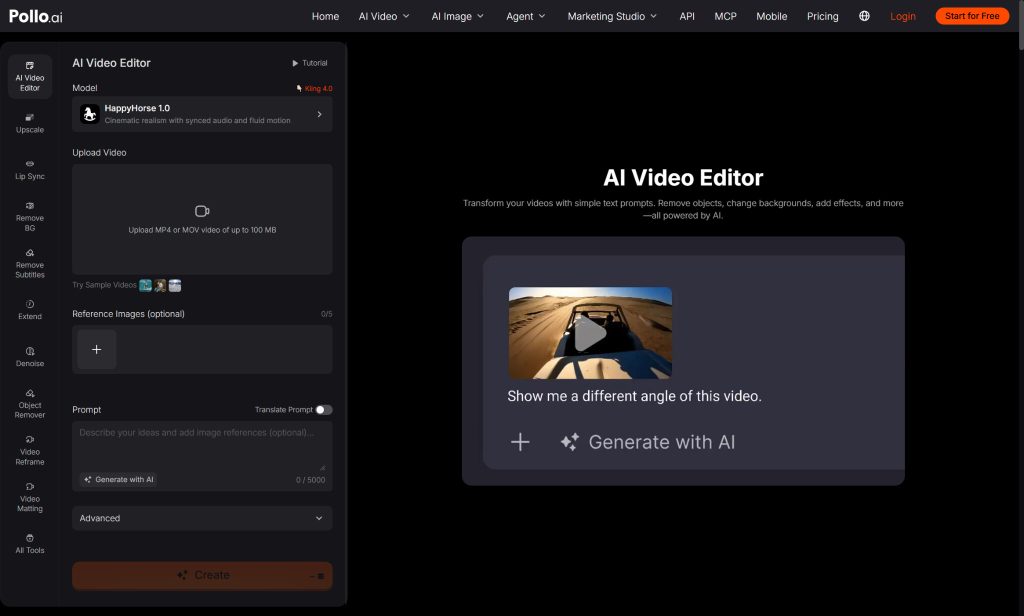
Traditional video editing often begins with a timeline, several tracks and a long search for the right tool. That is excessive when a clip only needs one visible correction. Prompt-based AI video editing offers a simpler route: upload the footage, describe the change and review the new version. This guide covers seven practical fixes, a reusable prompt structure and the problems that still require a new source clip rather than more editing instructions.
How Does AI Prompt-Based Video Editing Work?
Contents
Prompt-based editing turns a written instruction into a visual change while using the uploaded video as the source. The editor interprets what should change and rebuilds the affected result, so the prompt must also protect important details.
With an AI video editor for prompt-based fixes, creators can request changes without manually building masks, keyframes or layered effects. Pollo AI describes a three-step process: upload a video, enter the desired change and generate the edited result. The method is especially useful for creators who know what looks wrong but do not want to learn a complete professional editing interface for a single background, object or atmosphere correction.
Which 7 Video Fixes Can You Make Without a Timeline?
Use prompt editing for specific visual problems that do not require a new performance or a different factual scene. Work from the least disruptive correction to the most transformative one.
1. Remove one unwanted object. Name the object and its location, then tell the editor to preserve nearby hands, surfaces and shadows. This is safer than asking to clean up the entire frame.
2. Replace a distracting background. Describe the new setting in concrete terms, including light direction and depth. Keep the person, product and camera framing fixed unless those elements also need correction.
3. Change the time of day or weather. Request a clear condition such as overcast daylight or a rainy night. Review reflections and shadows because atmosphere changes must affect the scene consistently.
When is an edit not enough? If editing cannot create the performance the story needs, generate a replacement with an AI video generator and keep the new shot aligned with the surrounding framing, subject and lighting. Do not force a local editor to solve a missing action.


4. Refresh clothing or subject styling. State the new wardrobe or appearance and protect identity, pose and body proportions. Use only images and identities you have permission to modify.
5. Add a controlled visual effect. Specify where the rain, sparks, film grain or stylised treatment appears and how strong it should be. Effects should support the scene rather than compete with the message.
6. Create a wider or more dynamic view. Ask for an aerial, orbiting or wider angle only when additional generated space is acceptable. Check the edges of the subject and any product geometry carefully.
7. Unify the mood across campaign clips. Apply a shared lighting direction, colour temperature and atmosphere to clips that already match in content. Edit one reference clip first, then use it as the review standard for the rest.
What Should an AI Video Editing Prompt Include?
Every prompt should include the change, its location, the desired look and the details that must not move or change. This four-part structure reduces broad reinterpretation.
| Prompt part | Question to answer | Example |
| Target | What should change? | The background behind the presenter |
| Action | What should happen? | Replace it with a clean home office |
| Look | How should it feel? | Soft morning light, neutral colours |
| Protection | What must stay fixed? | Keep the presenter, laptop and framing unchanged |
| Reference | What visual should guide the edit? | Upload up to five optional reference images when a specific look matters |
What Should You Avoid When Editing Video with AI?
Avoid vague requests, conflicting changes and prompts that ask the editor to invent important product or documentary facts. More words do not automatically create more control.
Do not ask for a new location, wardrobe, camera angle, action and visual style in the same first attempt. The result may look polished while losing the original subject. Avoid generated labels, prices and legal wording inside the scene because text accuracy is difficult to guarantee. When a face, product or performance is already wrong, return to an approved source instead of stacking edits over unreliable footage.
How Do You Build a Repeatable AI Editing Workflow?
Save the source clip, the successful prompt and the approved output as three separate assets. A simple version history makes future changes easier to control.
Name versions by the actual change, such as background-office-v2 or rainy-night-v1, rather than final-final. Review one change at normal speed, then inspect the edited area frame by frame for final approval. For a campaign batch, approve one master look before applying similar prompts to additional clips. This prevents every video from receiving a slightly different interpretation of words such as cinematic, warm or clean.
Ready to Edit a Video with AI Prompts in Pollo AI?
Choose one short clip with one correctable visual problem. Upload it to Pollo AI Video Editor and write a prompt that identifies the target, change and protected details. Review whether the edit improved the message without damaging the subject. Once that single correction works, reuse the same prompt structure for the next clip instead of rebuilding a complex timeline.