


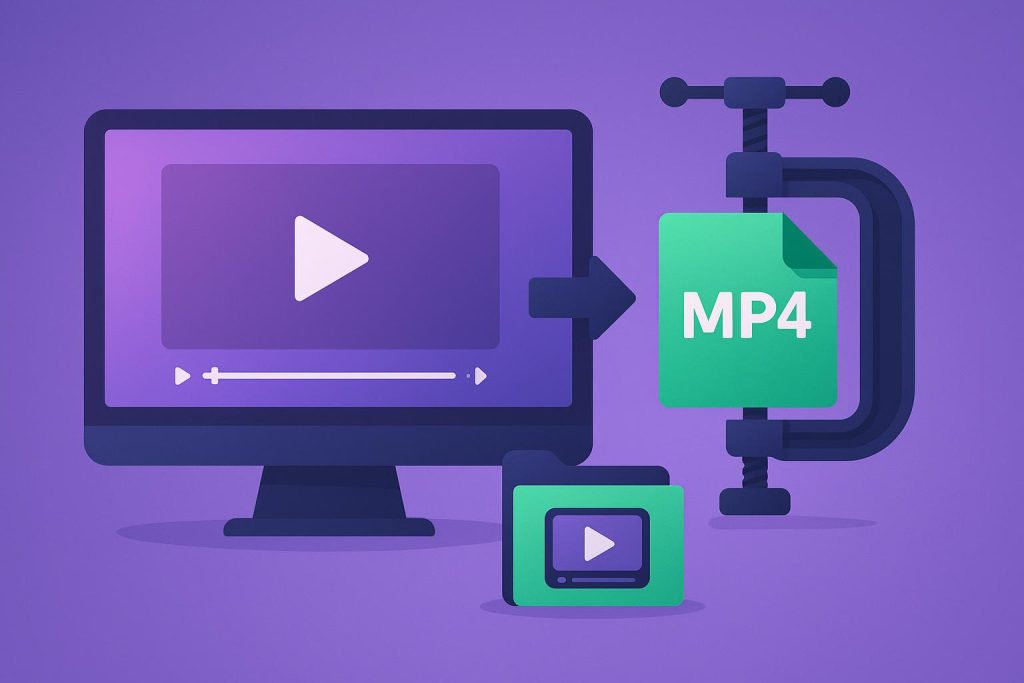
Video files are getting bigger every year. A short clip from a modern smartphone can easily run into hundreds of megabytes, which makes it hard to email, upload to social media, or keep on a device with limited storage. That’s where a reliable mp4 compressor comes in. In this guide, you’ll learn why compression matters, how it works, and how to get smaller files while keeping your videos looking sharp.
Why Do MP4 Files Become So Large?
Contents
MP4 is the most widely used video format in the world, supported by nearly every phone, computer, TV, and social platform. But popularity comes with a catch: modern cameras record in 4K, 60 frames per second, and high bitrates. All of that detail packs a huge amount of data into every second of footage.
A few factors drive file size:
- Resolution: 4K video contains four times as many pixels as Full HD.
- Bitrate: Higher bitrates store more information per second, increasing size.
- Frame rate: 60 fps files carry twice as many frames as 30 fps.
- Duration: Longer videos naturally take up more space.
When these combine, a few minutes of footage can fill gigabytes of storage.
What Is an MP4 Compressor and How Does It Work?
An MP4 compressor reduces the size of your video file by re-encoding it more efficiently. It does this in a few ways:
- Removing redundant data: Many video frames are nearly identical to the ones before them. Compression stores only the differences.
- Adjusting bitrate: Lowering the bitrate trims the amount of data used per second of video.
- Changing resolution: Scaling a video from 4K to 1080p, for example, can dramatically cut file size.
- Optimizing codecs: Modern codecs such as H.264 and H.265 deliver better quality at smaller sizes.
A good compressor balances these settings so the loss in quality is barely noticeable to the human eye.
Benefits of Using an Online MP4 Compressor
You can compress video with desktop software, but online tools have become the go-to choice for many people. Here’s why:
No Installation Required
Online compressors run in your browser. There’s nothing to download, no storage used on your device, and no complicated setup. This is ideal if you’re on a shared computer or a device with limited space.
Works on Any Device
Whether you’re on Windows, macOS, Linux, Android, or iOS, a browser-based tool works the same way. You can compress a video on your phone right after recording it.
Fast and Simple
Most online tools follow a simple three-step flow: upload, compress, download. You don’t need technical knowledge about codecs or bitrates.
Saves Storage and Bandwidth
Smaller files upload faster, download faster, and take up less room in your cloud storage or phone gallery.
How to Compress an MP4 Video Online
Compressing a video takes only a minute or two. Here’s the typical process:
- Open the tool. Visit an online MP4 compressor in your browser.
- Upload your video. Select the file from your device, or import it from cloud storage such as Google Drive or Dropbox.
- Choose a compression level. Pick a preset that balances size and quality, depending on your needs.
- Start the process. The tool will re-encode your video automatically.
- Preview and download. Check the result, then save the smaller file to your device.
Tips for Getting the Best Results
To get the most out of any compression tool, keep these practical tips in mind:
- Know your destination. A video for WhatsApp can be compressed far more than one meant for a presentation or professional portfolio.
- Don’t over-compress. Extreme compression creates blurry visuals and blocky artifacts. Aim for a noticeable size reduction without sacrificing clarity.
- Keep the original. Always save a copy of the uncompressed file in case you need it later.
- Trim before compressing. Cutting unnecessary footage first reduces size even further.
- Compress once. Repeatedly compressing the same video degrades quality each time.
Common Situations Where Compression Helps
You might need to shrink a video more often than you think:
- Email attachments: Most email providers cap attachments at around 20–25 MB.
- Social media uploads: Platforms like Instagram, Facebook, and X have size and length limits.
- Messaging apps: Sending large videos over WhatsApp or Telegram is faster with smaller files.
- Website performance: Lighter videos improve page load times, which benefits both users and SEO.
- Storage management: Compressing old footage frees up valuable space on your phone or computer.
What to Look for in a Good Compressor
Not all tools are equal. When choosing one, consider:
- Quality retention: The output should look nearly identical to the original.
- Ease of use: A clean interface saves time and frustration.
- Format support: Support for MP4 and other formats like MOV, AVI, and MKV adds flexibility.
- Privacy: Choose a service that handles your files securely.
- Speed: Fast processing matters, especially for large files.
Final Thoughts
Large video files don’t have to be a headache. With the right approach, you can cut file size dramatically while keeping your footage crisp and watchable. Whether you’re sharing a family moment, submitting a work video, or uploading content online, a dependable MP4 compressor makes the whole process faster and easier. Try compressing a video today and see how much space you can reclaim.