


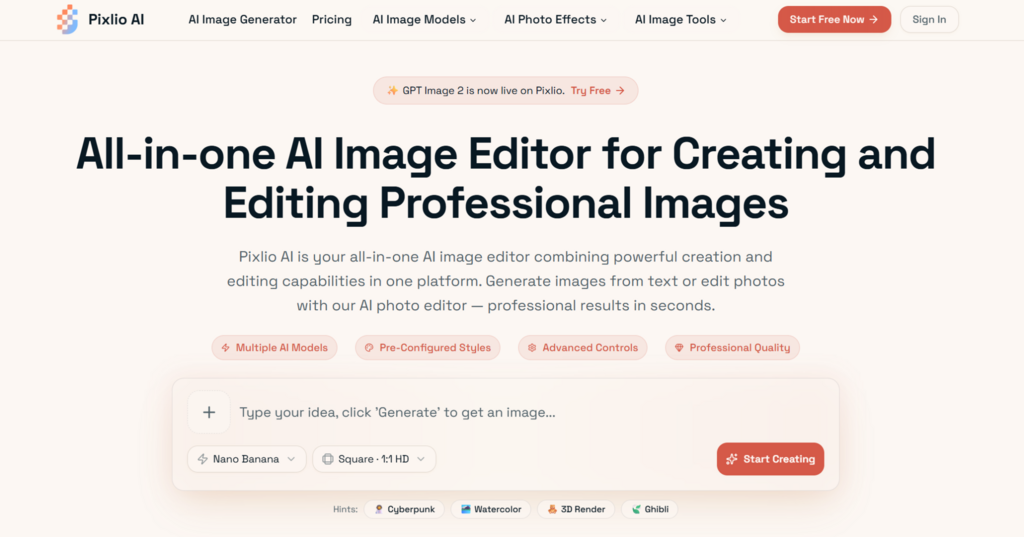
Good visuals matter, and most people don’t have the time or the budget to produce them professionally.
That gap has always been a problem. Professional designers can navigate complex software with ease, but for everyone else (small business owners, bloggers, marketers, indie founders, authors) the path from “I need an image” to “I have a finished image” is full of friction. Wrong tools, too many export steps, background removal that never quite looks right.
AI image editors are changing that equation. Not by replacing creativity, but by shortening the distance between an idea and something you can actually use. Pixlio is one of the more capable platforms built around this shift. It brings AI image generation, editing, image combining, outpainting, upscaling, background removal, and a range of specialized tools into a single browser-based workspace with no software installation required.
After spending time with the platform, the takeaway is straightforward: Pixlio AI image editor earns its place by covering more of the image workflow than most tools bother to attempt.
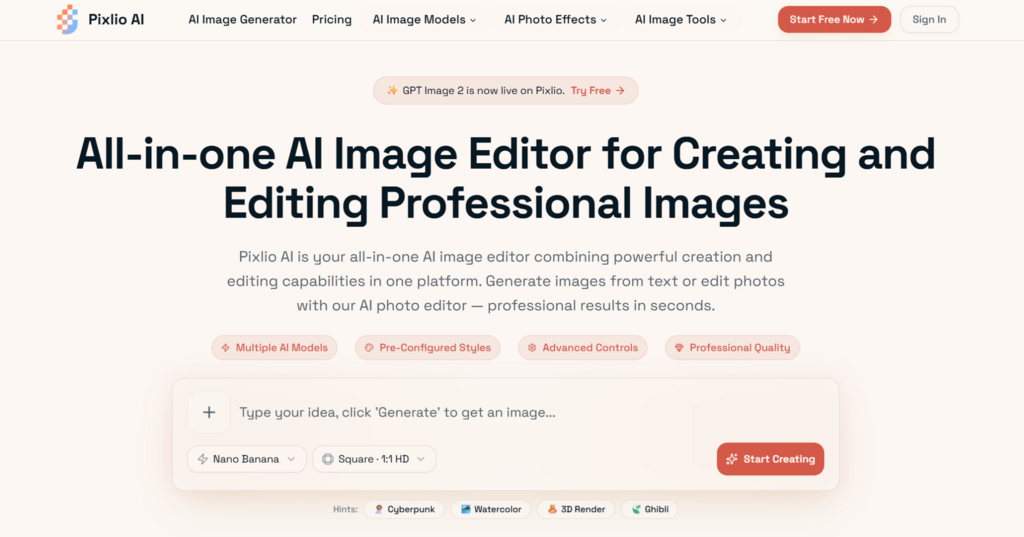
Pixlio’s browser-based interface lets you go from a text prompt to a professional image in seconds.
Who Pixlio Is Actually Built For
Contents
Pixlio isn’t designed for users who want to spend hours in a layered editing environment. It’s designed for people who need visual content that looks good and want to get there without turning it into a full production.
That covers a wider range of people than you might expect. A product seller who needs cleaner photos for their store. A freelance writer who wants original article images instead of the same stock photos everyone else uses. A founder putting together a landing page. A self-publishing author trying to explore cover directions before committing to a designer. Someone who wants to turn a phone portrait into something that actually looks like a headshot.
The platform is web-based, which keeps the entry point low. Open a browser, choose the task you need, and start working. No downloads, no license keys, no tutorial just to find the export button.
More Than a Generator
The term “AI image editor” gets applied loosely. Some tools are just filters. Some only do text-to-image. Some remove backgrounds and nothing else. Pixlio takes a broader approach, and that breadth is where its value actually shows up.
Real image work rarely starts and ends in one move. You might begin with a generated background, then bring in a product photo, blend the two, and clean up the result before exporting. Or you take a portrait, improve it for professional use, then create a more stylized version for social media. These aren’t separate projects; they’re stages in the same workflow. Having to switch tools between each stage is where time gets lost.
Pixlio keeps most of that process in one place: generate, edit, combine, expand, stylize, enhance, download. For anyone producing visual content regularly, that continuity matters more than having a single exceptional feature.
Generating Images from Scratch
When you don’t already have source material, or you want to explore a direction before committing to it, Pixlio’s AI Image Generator is where most sessions begin.
The process is about what you’d expect: write a prompt, choose a style or format, generate the result. Prompt quality does a lot of the work here. Short prompts can get you somewhere, but adding specifics like the mood you want, the lighting style, or the intended platform tends to produce results that are actually usable rather than technically impressive but practically wrong.
For content creators, this opens up a lot. A marketer can generate campaign visual concepts in minutes. A blogger can stop relying on generic stock images. A YouTuber can test five thumbnail directions in the time it used to take to find one usable photo. The generator is especially useful early in the creative process, when you’re still figuring out what the visual should actually be.
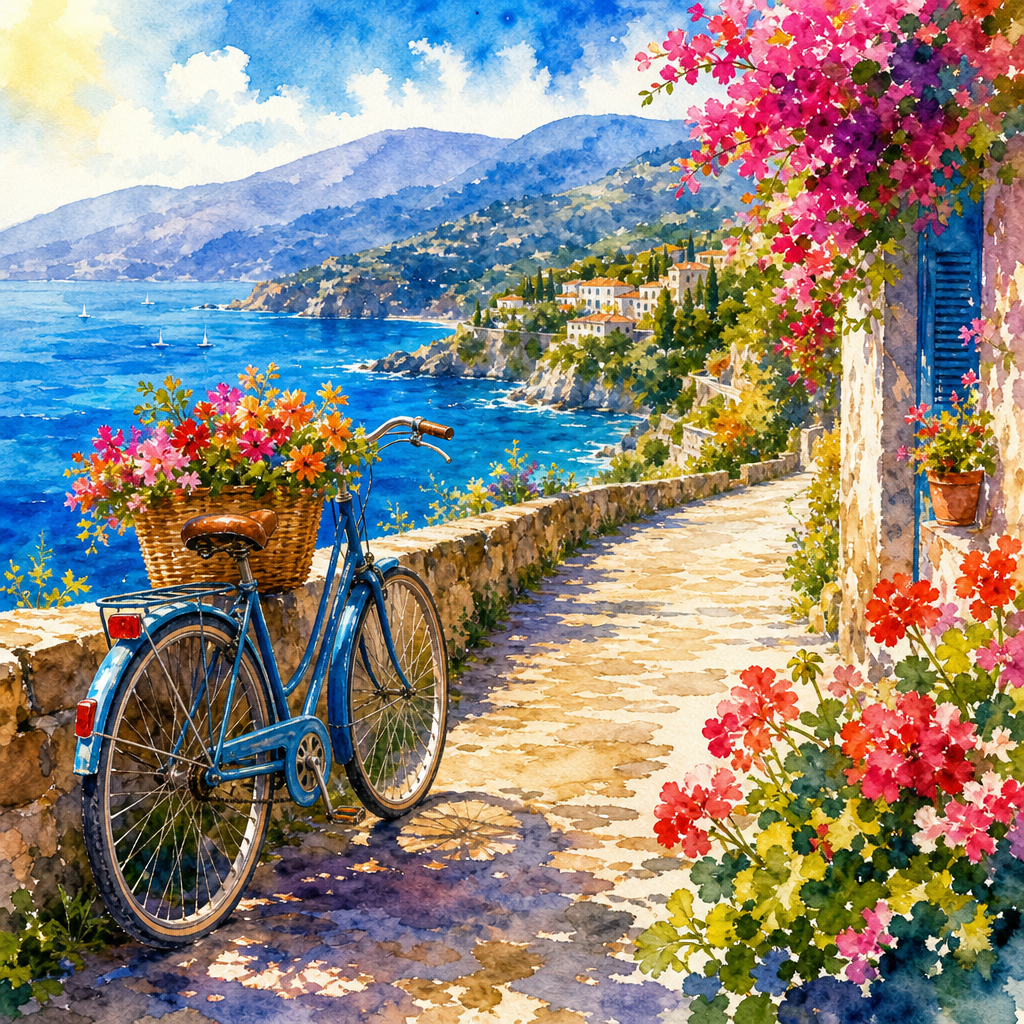
A watercolor Mediterranean coastal scene generated using Pixlio, showing the kind of detailed, artistic output Pixlio can produce.
Editing What You Already Have
AI generation gets most of the attention in this space, but editing existing images is often what people actually need. Most users already have photos: product shots, portraits, screenshots, rough visuals taken on a phone. The problem is those images usually need work before they’re ready to publish anywhere.
Pixlio’s editing tools can handle the most common problems: distracting or incorrect backgrounds, low resolution, a style that doesn’t fit the brand, old photos that need restoration. For anyone running an online store, producing marketing content, or building a website without a designer on call, these aren’t luxury features. They’re the reason to use the platform.
The background remover and image upscaler deserve specific mention. Background removal has historically been one of the more tedious parts of product photography. Getting it right manually requires time and precision. Pixlio handles it automatically, which doesn’t always mean perfect, but it means fast. And fast with a clean result most of the time is more useful than perfect in twenty minutes.
Combining Images Without the Headache
One feature that consistently surprises people who haven’t used it is Pixlio’s AI Image Combiner. Merging images manually is genuinely difficult. Putting a person into a new background, placing a product into a lifestyle scene, or blending two visual references into one composition all requires cutting, masking, color matching, shadow work, and perspective corrections. Done well, it takes skill and time.
Pixlio’s combiner uses AI to handle the blending, producing results that look intentional rather than stitched together. It won’t be right on the first attempt every time, because AI image editing still rewards iteration, but it makes experimentation fast enough that trying three or four approaches doesn’t feel like a time investment.
For product sellers creating lifestyle imagery, this is particularly useful. Instead of a plain product on a white background, you get a product that looks like it belongs somewhere real.
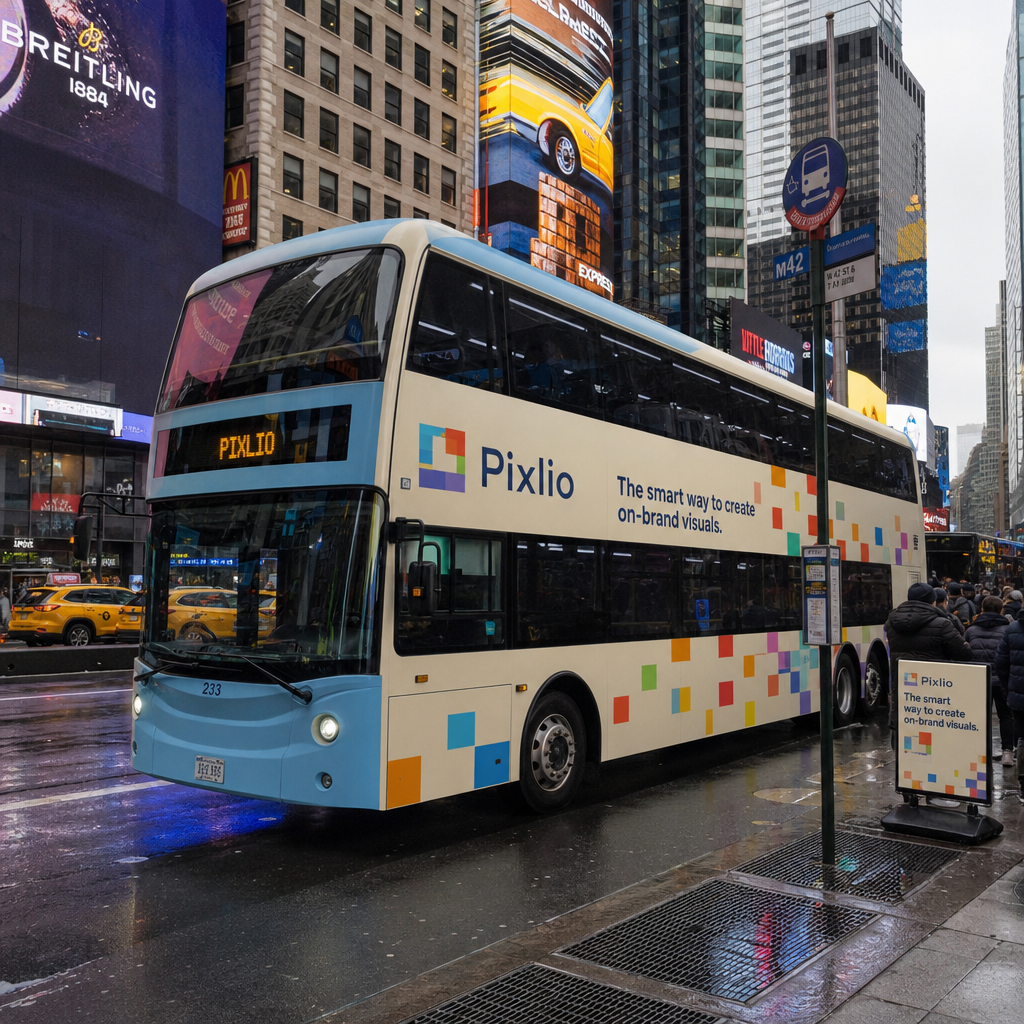
Pixlio-branded bus wrap placed seamlessly into a rainy Times Square setting. A real example of what the AI image combiner can do.
Specialized Tools for Specific Tasks
General editing environments are useful, but sometimes you know exactly what you need and having to find it buried in an interface just slows you down. Pixlio handles this by offering focused tools organized around specific outcomes.
The AI Book Cover Generator is designed specifically for that use case, which makes it faster than trying to adapt a general editor. Photo to Painting, Photo to Sketch, and Photo to Line Drawing each serve a distinct creative direction, useful for anyone who wants an illustrated or artistic version of a photo without having to manage style transfer manually. AI Outpainting is particularly practical when a visual needs to fill a wider layout than the original crop allows: instead of cropping down or settling for a border, you extend the image outward.
The platform also includes a professional headshot generator, caricature maker, image describer, and a handful of other focused utilities. The overall effect is less like a single tool and more like a well-organized toolkit. Different instruments for different jobs, but all in the same place.
The Day-to-Day Experience
Using Pixlio doesn’t require a steep learning curve to get started. The platform guides users through tasks rather than dropping them into a blank editing environment and expecting them to figure out the workflow themselves. That’s the right call for a tool aimed at non-designers.
The browser-based setup also helps with occasional users, the people who only need to edit images when a specific project comes up. There’s no software to update, no subscription to justify with daily use, no heavy interface to reload every time you open it.
One thing worth setting expectations on: AI image editing rewards iteration. The first result is rarely the final one. Adjusting a prompt, trying a different style, or running an image through one more pass often produces noticeably better output than accepting what came first. Pixlio makes that iteration quick enough that it doesn’t feel like rework. It feels like refining.
The Bottom Line
Pixlio is a practical choice for anyone who needs to produce and refine visual content without building a design workflow from scratch. It’s not trying to replace professional tools for professional designers. It’s trying to solve a real problem for everyone else: the gap between having a visual idea and having a finished image you can actually use.
The combination of generation, editing, combining, outpainting, upscaling, and specialized tools in one place is genuinely useful. Not because any single feature is unprecedented, but because having them connected reduces the time and tool-switching involved in going from a rough concept to something ready to publish.
For creators, marketers, small business owners, authors, and indie makers who need a reliable image workflow without the overhead, Pixlio is worth the time to explore.