


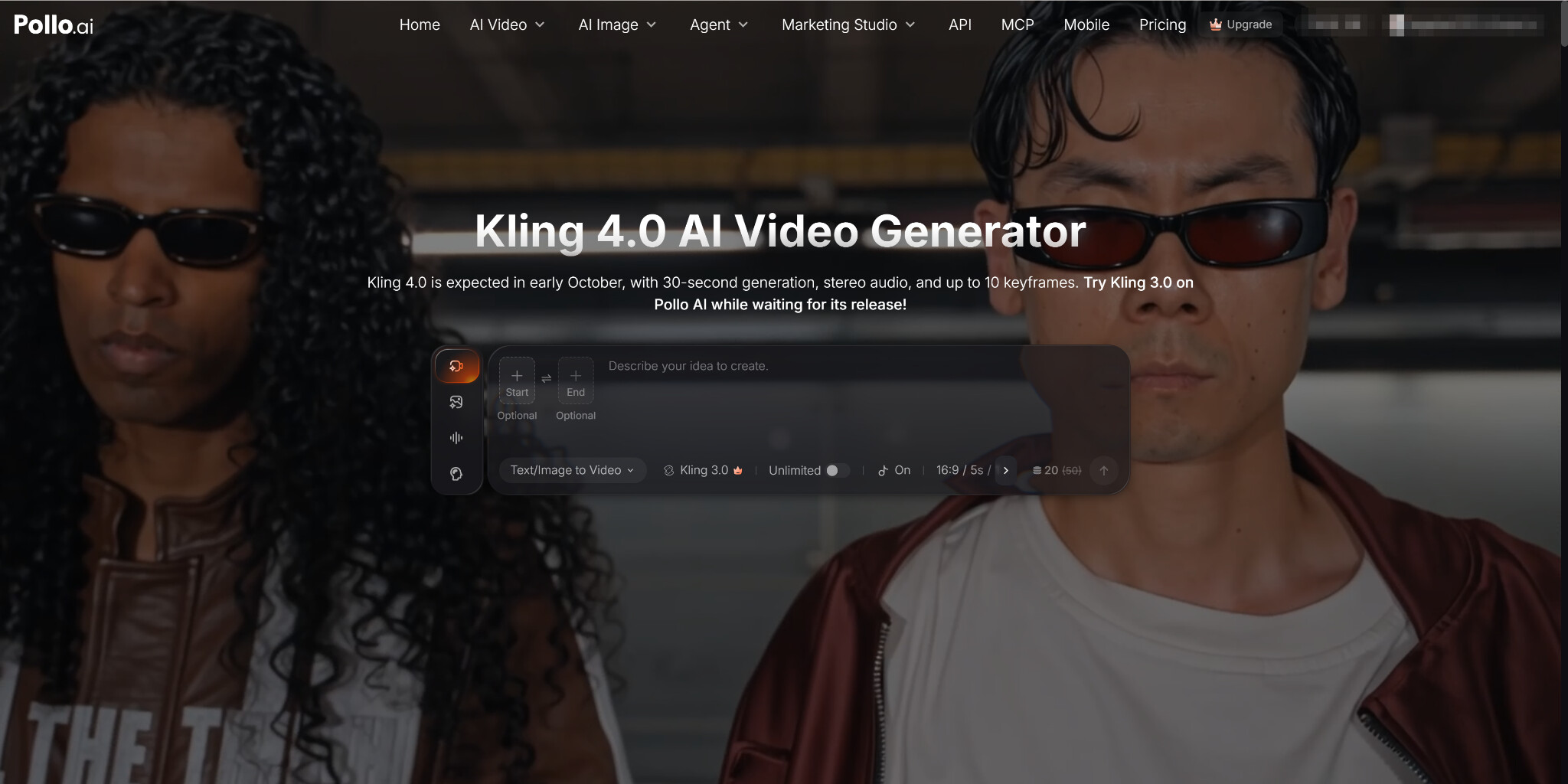
A strong image can become much more than a still frame. With Kling 4.0 AI video generator, you can add camera movement, character actions, lighting changes, and sound to create a cinematic AI video. Available on Pollo AI, it works well for product ads, short films, music visuals, social media posts, and brand campaigns.
This guide explains how to prepare your image, write effective motion prompts, control key moments, and make a polished video people will want to watch.
Why Use Kling 4.0 for Image to Video Creation?
Contents
- Why Use Kling 4.0 for Image to Video Creation?
- Step 1: Start With an Idea
- Step 2: Prepare a Strong Source Image
- Step 3: Describe Motion, Not Just Appearance
- Step 4: Use Keyframes to Guide Important Moments
- Step 5: Keep Characters and Products Consistent
- Step 6: Add Depth Through Environmental Motion
- Step 8: Review and Edit
Kling 4.0 can animate a source image while using its subjects, composition, and visual style as the foundation. This gives you more control than starting with text alone. You can design the exact opening frame before deciding how the scene should move.
The model supports clips of up to 30 seconds in one generation. It also offers multi-keyframe control, allowing creators to guide up to 10 important moments. You can use these keyframes to plan character actions, camera changes, or the development of a scene.
Kling 4.0 can work with multiple visual references as well. These references help maintain the appearance of characters, products, and branded elements throughout a video.
Step 1: Start With an Idea
Before creating an image, define the main event in the video. Keep it simple enough to understand in one sentence.
Your idea should at least have one subject, one setting, and one clear action. You should also decide the purpose of the video. A product advertisement needs clear brand visibility. A narrative scene needs emotion and progression. A social media clip needs an interesting opening that works immediately.
Step 2: Prepare a Strong Source Image
The quality of the starting image has a major effect on the final video. Choose an image with a clear subject, natural proportions, and enough space for movement.
You can use a photograph, product image, illustration, or AI-generated visual. If you need to create a new image, Nano Banana 2.1 is a practical option. It can produce detailed images at up to 4K and combine multiple references for more consistent characters, objects, and campaign visuals.
When preparing the image, check these points:
- The main subject is easy to identify.
- Faces and hands look natural.
- Product shapes and labels are correct.
- The lighting has a clear direction.
- The background supports the subject.
- The aspect ratio matches the intended platform.
For cinematic scenes, a wider composition can create a stronger sense of space. Vertical images are usually better for TikTok, Instagram Reels, and YouTube Shorts.
Do not overload the frame. Kling needs visual room to create movement. A crowded source image may produce distracting motion or unclear subject behavior.

Step 3: Describe Motion, Not Just Appearance
Once you upload your image to Kling 4.0, write a prompt that explains what happens next. Focus on four areas:
- Subject movement
- Camera movement
- Environmental movement
- Mood and pacing
Here is a simple example:
The woman slowly turns toward the camera. Her hair moves gently in the wind. Rain falls behind her and reflects the neon lights. The camera makes a slow push-in. Quiet, tense, cinematic mood.
This prompt gives Kling a clear sequence without adding too many actions. Short and direct instructions are usually easier to control.
Avoid prompts such as “make it cinematic” with no further guidance. Explain what cinematic means for this scene. It could involve a slow camera move, shallow depth of field, soft backlighting, dramatic shadows, or restrained character movement.
Step 4: Use Keyframes to Guide Important Moments
Kling 4.0 supports up to 10 keyframes. These keyframes can define the major visual moments between the beginning and end of a clip.
For a product reveal, the sequence might be:
- The product is partly hidden in shadow.
- A soft light moves across the packaging.
- The camera approaches the product.
- Mist clears from the foreground.
- The logo becomes fully visible.
For a character scene, you could guide changes in body position, expression, and framing.
Every additional instruction creates another condition for the model to follow. Three or four well-planned moments may be enough for a short scene.
Step 5: Keep Characters and Products Consistent
Visual drift can happen when a video contains complex movement. A face may change slightly, clothing details may disappear, or product packaging may become distorted.
Use clear reference images to reduce these problems. Kling 4.0 can combine up to 15 references to guide visuals, movement, and voice. Provide several angles when the subject will turn or move across the frame.
For a branded product, include clear references of the front, side, logo, packaging, and important design details. For a character, use a clean portrait, full-body image, side view, outfit reference, and several expressions.
Your prompt should also identify the details that must remain unchanged.
Step 6: Add Depth Through Environmental Motion
Small background movements often look more cinematic than large effects. They make the world feel active without taking attention away from the subject.
Environmental motion should match the lighting and setting. Heavy wind will affect hair, clothing, trees, smoke, and loose objects. If only one element reacts, the scene may feel unnatural.
Step 8: Review and Edit
Watch the generated clip several times. First, review the main action. Then check faces, hands, clothing, product details, and background objects. Finally, look at camera movement and pacing.
If the result feels too busy, simplify the prompt. If the action is unclear, describe it in a more direct order.
Kling 4.0 can extend videos across multiple generations, making longer sequences possible. Use the final frame of one clip as the visual starting point for the next. Keep the same references and core prompt details throughout the project.
Turning an image into a cinematic AI video with Kling 4.0 starts with careful preparation. Use a clean source image, define one main action, and choose a camera move that supports the idea. When you need detailed source images, Nano Banana 2.1 can help you prepare the right visual foundation.
Ready to bring your images to life? Access Kling 4.0 and Nano Banana 2.1 through Pollo AI and start creating cinematic AI videos today.