


We have all been there! You hit the power button, and your Windows PC takes forever to wake up. You try to open a simple app, and it lags. Then comes the ultimate annoyance: the dreaded “Low Disk Space” warning. Over time, your computer quietly piles up temporary files, hidden caches, and junk data that completely drain your system’s performance. While buying new hardware costs a fortune, a smart software solution can fix these issues easily.
In this review, we are diving into WMaster Cleanup—an all-in-one optimizer—to see if it can truly make your sluggish computer feel brand new again.
What is WMaster Cleanup?
Contents
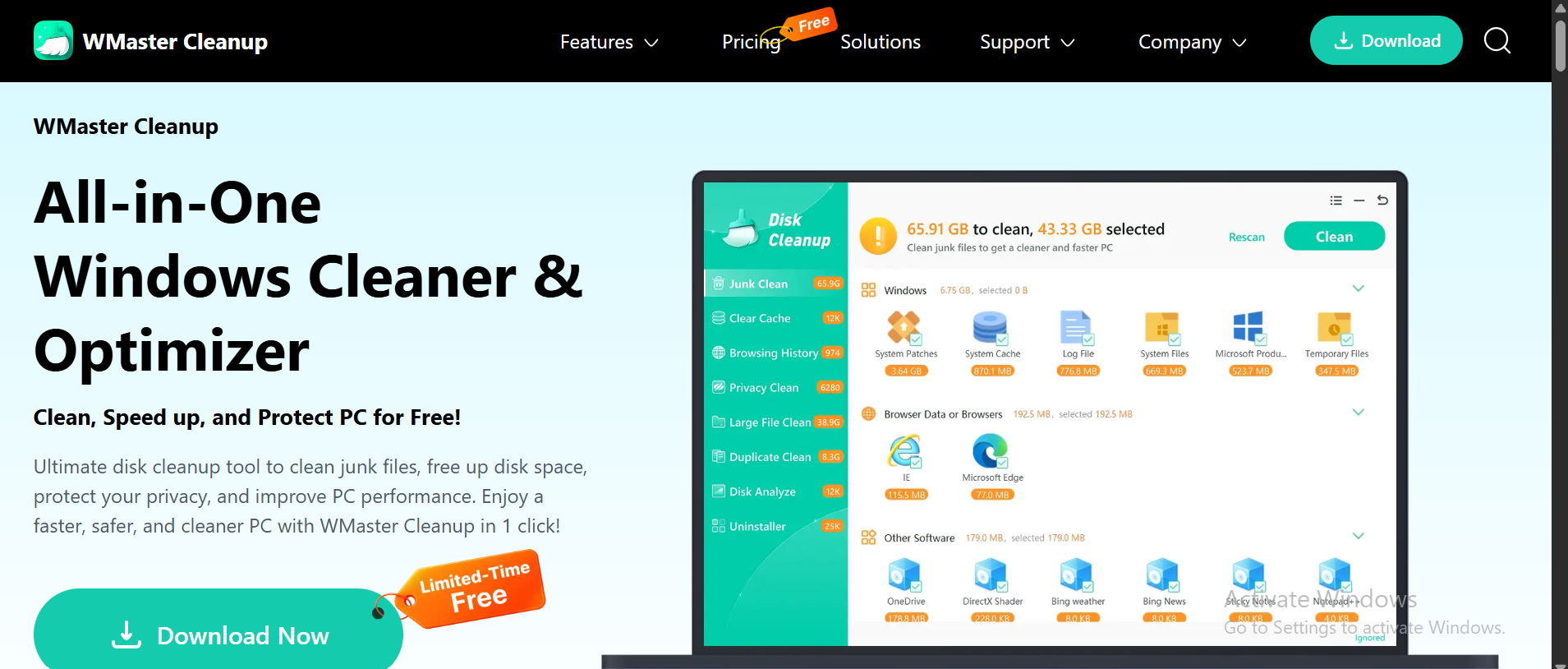
WMaster Cleanup is the best PC cleaner and all-in-one optimization tool, built specifically to take the headache out of Windows maintenance. The software hunts down and safely deletes the digital clutter that piles up from your daily browsing, app usage, and old installations. By clearing out this heavy baggage and managing your computer’s active memory, WMaster Cleanup gives your PC the breathing room it needs to run faster, smoother, and much more efficiently.
Instead of forcing you to hunt through confusing Windows settings or type scary command codes, this software bundles every maintenance tool you need into one beautiful, easy-to-use dashboard. Think of it as a digital refresh button for your entire system.
Core Features: Maximize Your PC’s Hidden Potential
- Disk Clean Up
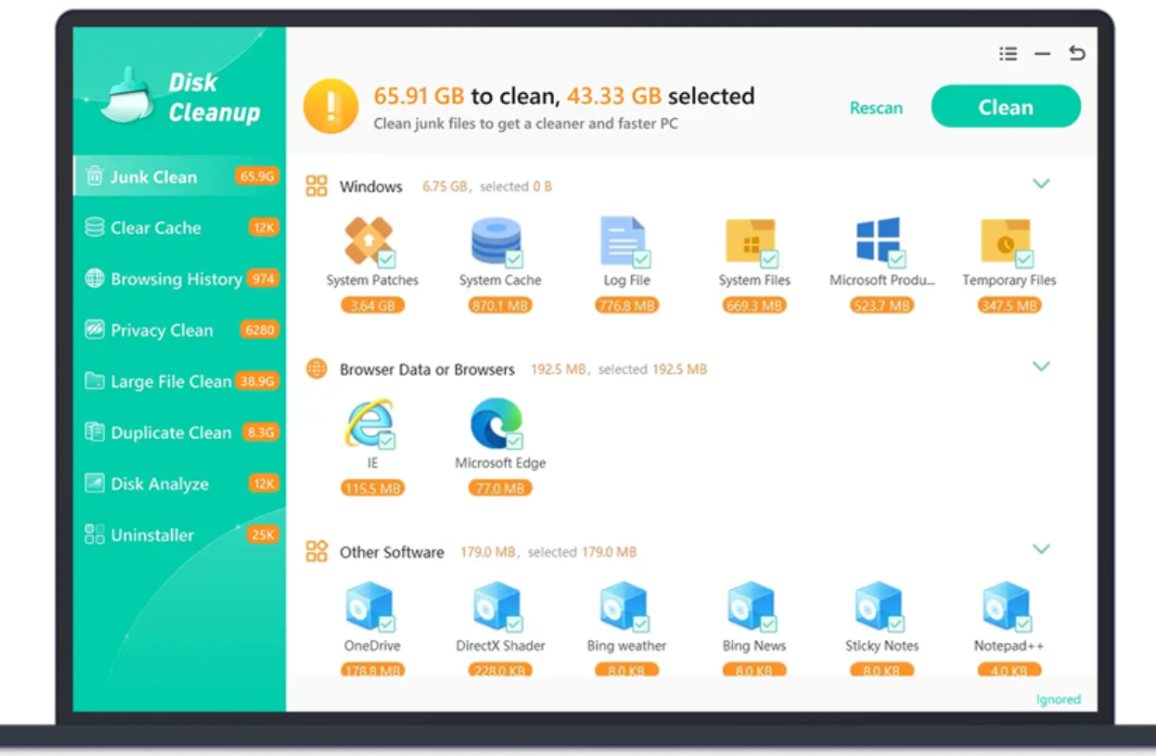
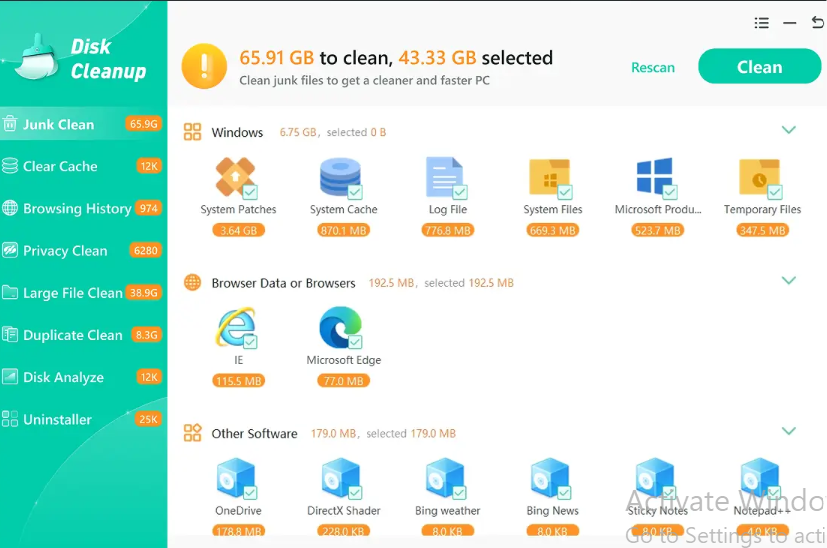
This is the heart and soul of the app. The Disk Cleanup tool runs a quick, deep scan through your system to catch useless logs, leftover update files, and temporary setup data. It sweeps them all away instantly, giving you back valuable gigabytes of space without touching your important personal files.
- Duplicate Clean
WMaster Cleanup quickly finds and removes duplicate photos, videos, and files that are wasting your phone’s space. It can safely remove duplicate files with one tap, keeping your original files completely secure. It is the easiest way to free up storage and make your device run faster.
- Detect and Remove Large Files
Sometimes, massive files hide deep inside forgotten folders, quietly eating up your storage. This feature acts like a magnifying glass for huge data blocks. It scans your drive, sorts everything by size, and shows you exactly what is taking up space so you can delete or move heavy files (from your C drive to your D drive) in a single click.
- Clean C Drive
Your C drive is where Windows lives, and it needs space to work properly. When it fills up, your whole computer chokes. Learning how to free up disk space on the C drive can be so easy with WMaster Cleanup. Its Clean C drive feature is a specialized tool that focuses strictly on your primary partition. It quickly purges system dumps and unnecessary delivery data to keep Windows highly responsive.
- Uninstall Application (with Deep Clean)
Did you know that standard Windows uninstallation leaves behind empty folders and broken registry pieces? The advanced Uninstall Application feature by WMaster Cleanup fixes this completely. It doesn’t just remove the app; it runs a thorough sweep afterward to wipe out every single residual file so your system stays perfectly clean.
- Game Booster (Dedicated to Gamers)
This feature reallocates your hardware resources on the fly to give you a competitive edge. With a single click, it temporarily suspends non-critical background services, frees up your active RAM, and channels your CPU and GPU power entirely into your game. It helps you maintain stable frame rates and minimizes input lag during intense gaming sessions.
Other Essential Features
WMaster Cleanup also packs several extra utilities to enhance your daily desktop experience:
- Clear Cache: It flushes out temporary application data to free up your active RAM instantly.
- Clear Browsing History: It clears cookies and history across all your major browsers at once, protecting your privacy and speeding up your web surfing.
- Defrag Files: It reorganizes fragmented data on your hard drive, allowing your system to read files faster and boost overall responsiveness.
How to Use WMaster Cleanup: Quick & Easy Steps
You don’t need to be a tech wizard to optimize your PC. You can clean and refresh your system in just four simple steps:
Step 1: Download and Launch: Grab this system cleaner from its official website. Follow the quick setup, install it, and launch straight on your desktop.
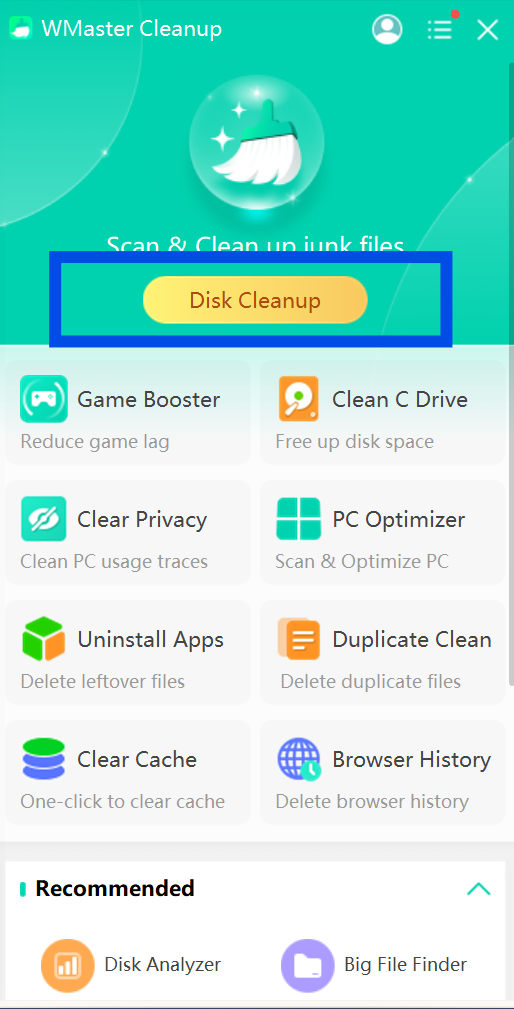
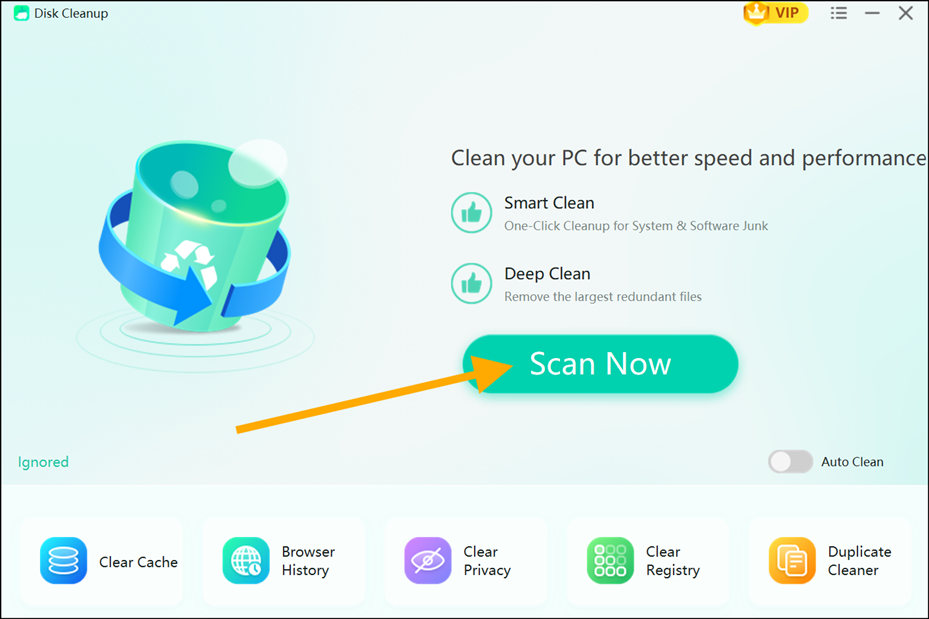
Step 2: Choose Your Feature: Look at the clean dashboard and select the tool you need—like Disk Cleanup, Duplicate Cleaner, or Remove Large Files.
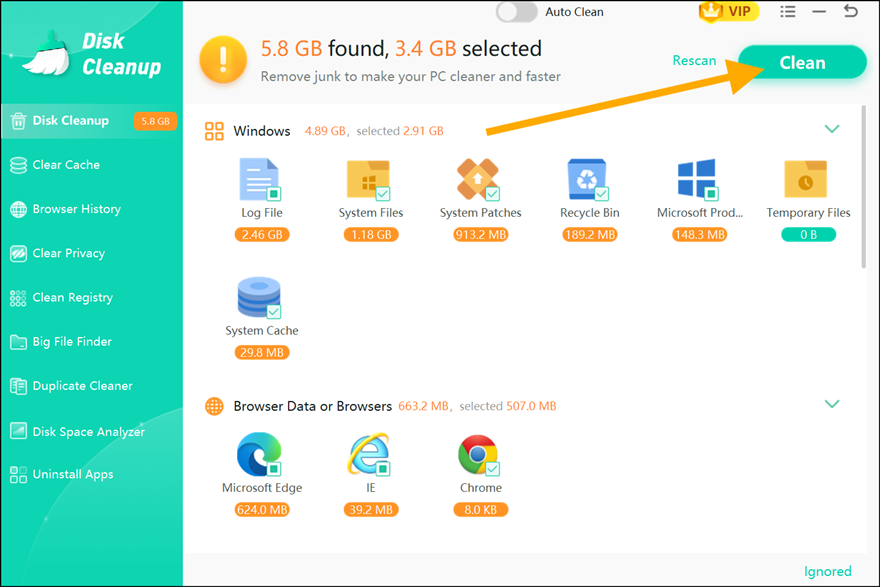
Step 3: Scan and Select: Now initiate the scan, and the software will rapidly scan your drive and show you a neat list of items.
Step 4: Select & Hit Clean: Simply check the boxes next to the clutter you want to remove. Now, click the big “Clean Now” button and confirm.
Pros and Cons
To give you a completely honest view, let’s weigh the pros and cons of this tool:
Pros:
- Super Simple Dashboard: Anyone can use it; you do not need any technical experience.
- Thorough Leftover Sweep: It finds and deletes hidden registry junk that other uninstallers miss.
- Safe C Drive Tuning: It cleans up your main drive safely without any risk to your core Windows files.
Cons:
- Deep Scans Take a Moment: A full-system scan can take a few minutes if you have a massive, highly cluttered hard drive.
- Windows-Specific: This tool is specifically works for Windows 7, 8, 10, & 11
Frequently Asked Questions (FAQs)
Q1: Is WMaster Cleanup safe to use on my primary boot drive?
Ans: Absolutely! The software uses smart, safe detection algorithms. It targets temporary junk, old logs, and useless caches while completely avoiding your essential Windows files and personal data.
Q2: Can this software help improve my gaming performance?
Ans: Yes! Its built-in Game Booster module automatically optimizes over 5,000 popular games. By pausing background tasks and freeing up system resources, it delivers smoother gameplay and a stutter-free experience.
Q3: How often should I run the Disk Cleanup and Large File tools?
Ans: For regular daily use, running a quick scan once every two weeks will keep your PC in great shape. If you download large files constantly, we recommend a quick weekly scan.
Q4: Does the Uninstall Application feature delete my personal data along with the software?
Ans: The tool deletes core application files and residual registry junk. It always shows you a clear breakdown first, giving you total control over whether you want to save your user data or completely wipe the app out.
Final Thoughts
WMaster Cleanup proves that PC maintenance does not have to be complicated. It delivers a fast, stress-free way to look after your computer by combining vital tools like Clean C Drive and Remove Large Files with an exceptional Game Booster. If you want an effortless, beginner-friendly routine to keep your storage free, your Windows snappy, and your gaming smooth, this lightweight toolkit is a fantastic addition to your desktop.