



Camera SD card loss is different from ordinary file loss on a laptop. A single card may hold wedding photos, travel footage, product shoots, drone clips, client work, or once-in-a-lifetime family moments. That is why users search for camera SD card recovery the moment photos or videos disappear. In many cases, deleted or formatted media can still be recovered if the card is taken out of use quickly and handled the right way.
This guide explains why camera card files go missing, which checks are worth trying before recovery software, where free methods hit limits, and when a dedicated recovery workflow is the safer option. If your camera SD card contains JPG, RAW, MOV, or MP4 files, acting early matters more than trying random fixes.
Why Files Get Lost From a Camera SD Card
Contents
- Why Files Get Lost From a Camera SD Card
- Can You Recover Deleted Photos or Videos From a Camera SD Card?
- What to Try Before Using Recovery Software
- Why Dedicated Camera SD Card Recovery Software Is Often the Better Option
- Method Comparison
- Recoverit for Camera Memory Card Recovery
- Why Recoverit Is Worth Considering
- How to Recover Files From a Camera SD Card
Camera SD card data loss usually happens after accidental deletion, quick formatting in the camera, interrupted transfer, unsafe card removal, file system corruption, battery failure during writing, or repeated card use across multiple devices. These situations are common because camera cards are reused often and filled with large media files.
Unlike ordinary documents, camera media often includes RAW image formats, burst sequences, long video clips, and folder structures created by DSLR, mirrorless, action camera, or drone systems. That makes it important to use a recovery method that can scan removable media thoroughly and preview usable results.
Can You Recover Deleted Photos or Videos From a Camera SD Card?
Yes, often you can. If the files were deleted recently and the card was not reused for more shooting, the recovery odds are usually better. If the card was quick-formatted in-camera, some files may still be recoverable too. However, once new photos or videos are written to the same card, the chance of full restoration drops.
For camera owners, a structured photo and video recovery workflow is usually more reliable than guessing with repair tools or continuing to shoot on the same card.
Recovery Outlook by Situation
Recently deleted photos or videos — often a strong recovery chance — stop using the card immediately
Quick-formatted camera card — often recoverable — avoid taking any new shots
Card not detected properly — mixed outcome — try another reader or port first
Physically damaged camera card — lower software recovery success — may need professional help
Large amount of new shooting after loss — low chance for full recovery
What to Try Before Using Recovery Software
Method 1: Check Whether the Files Were Already Imported
Before scanning the card, check your photo import folders, external SSD, editing workstation, NAS backup, cloud sync folder, or project archive. Many photographers think a card is the only source when the files were already copied during a previous import session.
Method 2: Try Another Card Reader or Computer
Sometimes the problem is card access rather than real file loss. A weak adapter, unstable USB hub, or faulty reader can make the card appear unreadable even when the data is still there.
Method 3: Avoid In-Camera Formatting or Repair Again
Do not reformat the card again just to test whether the camera can read it. Avoid repair-first actions before recovery. Extra writes or structural changes can make deleted photos and videos harder to restore.
Limit: free checks are useful, but they usually do not provide preview, selective restore, or deeper support for mixed media formats like RAW photos and large video files.
Why Dedicated Camera SD Card Recovery Software Is Often the Better Option
A specialized recovery tool gives you a safer and more controlled workflow. Instead of repeatedly mounting the card and risking more changes, you can scan it, review recoverable file types, preview media, and restore files to another drive. That matters because camera-card recovery is often a race against overwrite risk.
For users who need a guided solution, Wondershare Recoverit makes sense because it is designed for deleted, formatted, corrupted, and inaccessible storage scenarios. It is especially relevant when the missing files include both photos and videos from cameras, drones, and action devices.
Method Comparison
Check imported copies or backups — fastest and free — only works if a second copy already exists
Try another reader or computer — useful for access checks — does not recover deleted camera files by itself
Use repair or reformat actions — risky before recovery — may reduce recovery success
Use camera card recovery software — best for scan, preview, and selective restore of photos and videos
Recoverit for Camera Memory Card Recovery
Recoverit fits this keyword well because camera card loss often involves mixed media, large files, and high-value moments. A good recovery tool should do more than show a generic scan result. It should help users identify images and videos, preview quality, and restore only the files they actually need.
If you want a more practical camera memory card recovery solution, it should support removable media, common photo and video formats, preview before recovery, and a workflow that remains manageable under pressure. Recoverit covers those needs while staying friendly for non-technical users.
Why Recoverit Is Worth Considering
- Supports SD cards, microSD cards, CF cards, and other removable media used in cameras
- Works with JPG, PNG, HEIC, RAW, MOV, MP4, and other common media formats
- Preview helps confirm whether deleted camera files are still usable before recovery
- Selective restore saves time and avoids recovering unnecessary files
- Useful for deletion, formatting, corruption, and inaccessible-card scenarios
- Beginner-friendly workflow reduces mistakes during urgent media-loss situations
How to Recover Files From a Camera SD Card
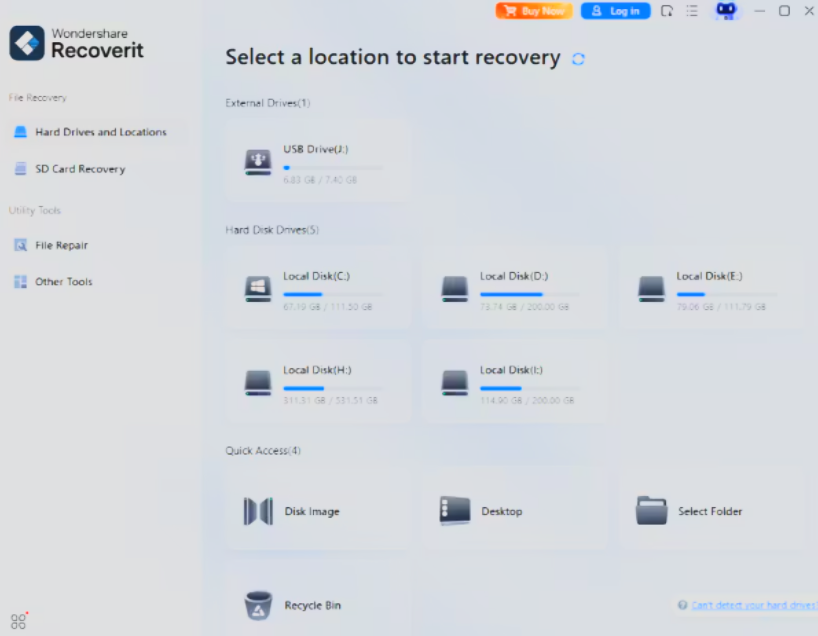
Step 1: Remove the Camera SD Card and Select It in Recoverit
Take the card out of the camera, connect it with a stable reader, open Recoverit, and choose the camera SD card from the device list. This step ensures you scan the correct storage source instead of the computer drive.
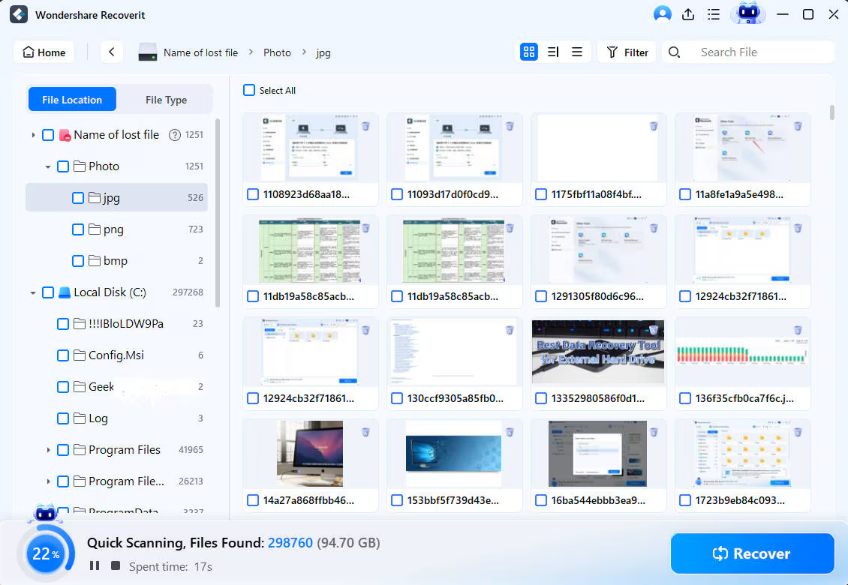
Step 2: Scan the Card for Recoverable Photos and Videos
Start the scan and let the software search the card for deleted, formatted, or hidden media. During this stage, the tool identifies recoverable image and video files across common camera file types and folders.
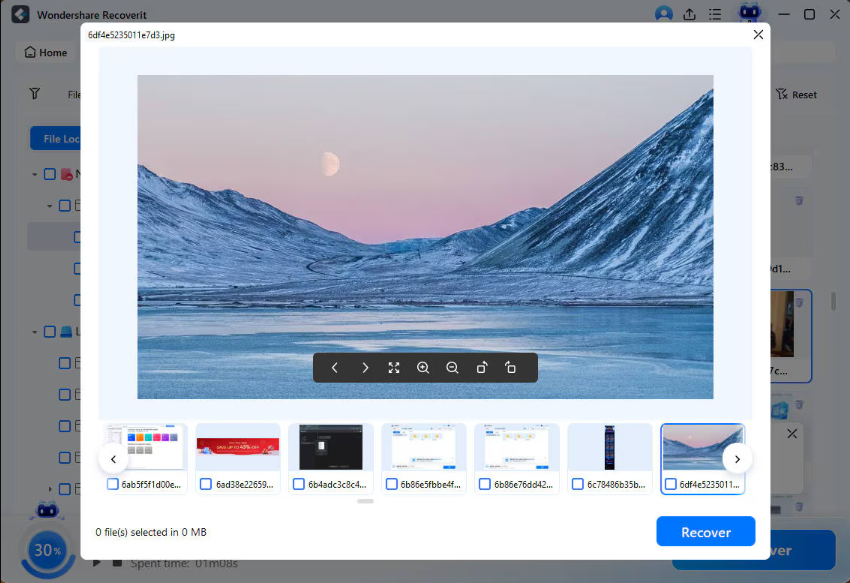
Step 3: Preview and Recover Files to Another Drive
Preview the photos and videos you want back, then save them to your computer or an external drive. Do not recover files back to the same camera card, because that can overwrite other missing media and lower your remaining recovery chance.
Conclusion
If you need camera SD card recovery, the safest strategy is to stop using the card, avoid repair-first mistakes, and scan it with a tool designed for removable media and mixed photo-video recovery. Free checks are still worth trying, but they do not solve every media-loss situation. When the missing files matter, a guided workflow like Recoverit is usually the more practical option.