


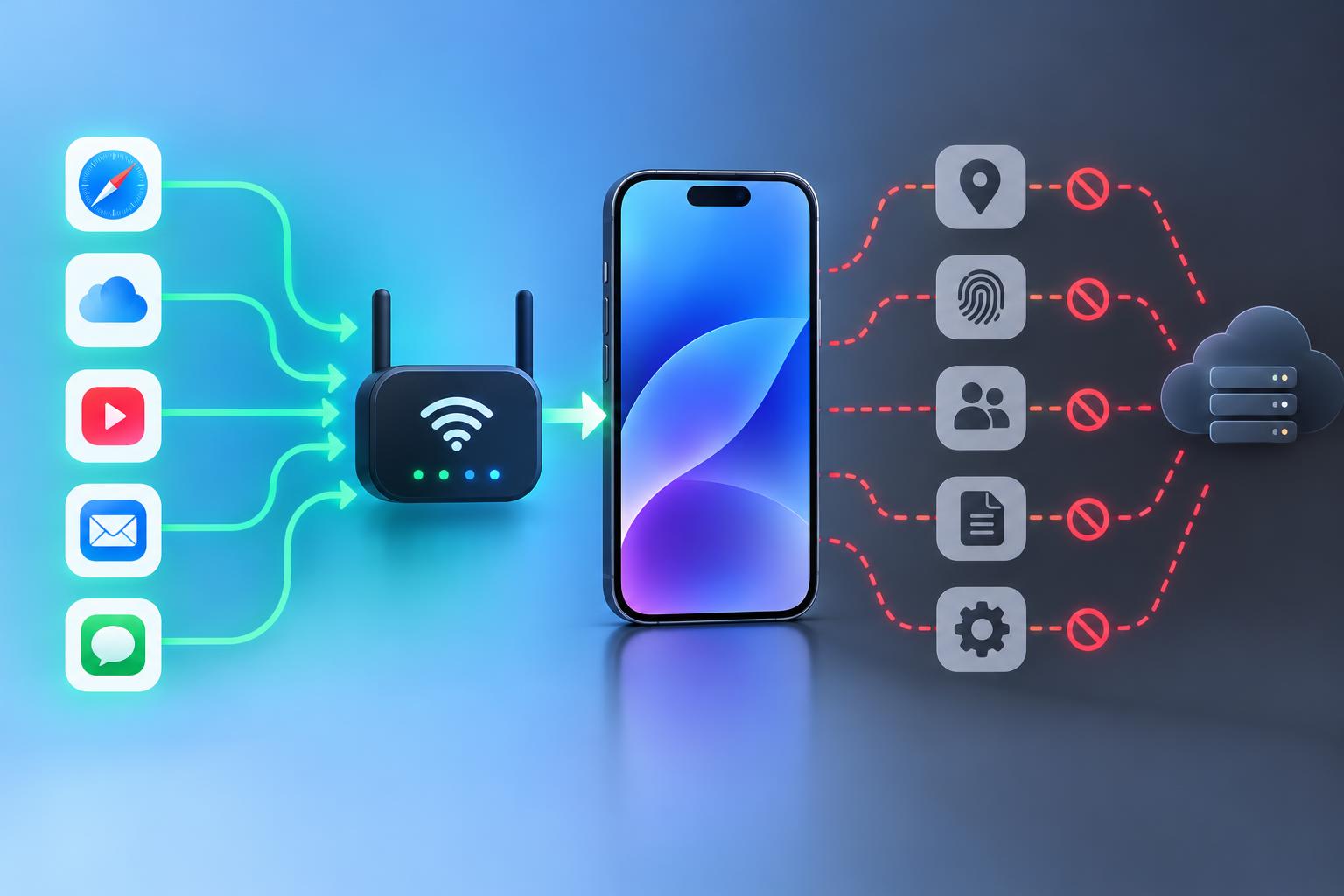
Ask three app testers how proxies for iPhone work and you will hear three different answers. One thinks the setting covers the whole phone. Another assumes it follows the device onto cellular data. The third installs a VPN-style app and never opens Settings. All three are partly wrong, and the gap surfaces later as a test that passed while half the traffic left through the home connection.
Below: what the native iOS setting routes, what it skips, how to check the route, and where a residential proxy service fits for authorized QA work, using one provider’s published gateway details as the worked example.
What a Proxy on iPhone Actually Is
An iPhone proxy is a server address that iOS hands HTTP and HTTPS requests to instead of contacting the website directly. That server fetches the page, or opens a tunnel for encrypted traffic, and the destination records the proxy’s exit address rather than yours. Nothing about the phone itself changes, which is why proxies for iPhone are best treated as a per-network routing hint, not privacy software.
Apple stores that hint per Wi-Fi network. Open Settings, tap Wi-Fi, tap the Info button for the connected network, and Configure Proxy offers three choices: Off, Manual and Automatic. Each saved network keeps its own value, so a proxy entered for the office SSID does nothing at home. Gateway ports such as 8080 or 3128 go in their own Port field.
Manual, Automatic and Managed Modes, and Where Each Stops
Manual mode sends requests to one fixed host and port, the right pick when a provider issues a hostname, port and login. Automatic mode downloads a PAC file and runs its FindProxyForURL function before each request, which lets an administrator send intranet hosts direct and everything else to a gateway. Leave the Automatic URL blank and iOS tries WPAD discovery; on a home router without it, requests simply go direct.
Each mode has an edge. Manual stops at that one SSID; Automatic fails once the PAC file is unreachable, as when an office script sits on a private address a café hotspot cannot reach.
The third mode never appears on the Wi-Fi screen. Apple’s deployment guide describes a Global HTTP Proxy payload that a device management service can push to an iPhone enrolled through Automated Device Enrollment, covering HTTP traffic to and from the device. Only one such payload can be delivered to a device, and Apple lists an option that lets captive Wi-Fi login pages bypass the proxy. Pick Manual for a single test network and leave the global payload to IT teams that already manage the fleet.
Wi-Fi Proxy, VPN App or Private Relay: Three Things People Mix Up
Three features change where traffic exits, and people mix them up constantly. The Configure Proxy screen is a plain HTTP proxy. A packet tunnel app from the App Store registers a local VPN profile and can carry selected traffic over Wi-Fi and cellular while it is active. iCloud Private Relay is Apple’s own relay for Safari and unencrypted HTTP, and it has nothing to do with the manual proxy fields.
Protocol is the other trap. Native iOS offers no SOCKS5 authentication fields in either Manual or Automatic mode, so typing a SOCKS5 port into the HTTP Proxy screen fails unless that gateway also accepts HTTP CONNECT on the same port. If a provider hands you only a SOCKS5 endpoint, use a tunnel client. Otherwise, stay with the built-in HTTP fields and keep the stack simple.
Setting Up a Manual HTTP Proxy Step by Step
Collect four values from the provider first: host, port, username and password.
- Join the Wi-Fi network you want to proxy and confirm the checkmark sits next to it.
- Tap the Info (i) button beside that network.
- Scroll to HTTP Proxy and tap Configure Proxy.
- Choose Manual mode, then fill in Server and Port.
- Switch Authentication on, enter the username and password, and tap Save.
Keep the Server field free of protocol prefixes, slashes and colon-separated ports. Providers often publish a single connection string; EZXLabs, for instance, documents its residential HTTP gateway as http://user:pass@proxy.ezxlabs.com:39080. On an iPhone that string has to be split up: proxy.ezxlabs.com goes in Server, port 39080 goes in Port, and the account credentials go under Authentication. Pasting the whole URL into Server is the most common reason Safari stops loading pages after Save.
Which Apps Follow the Setting and Which Ignore It
The Wi-Fi Configure Proxy setting doesn’t apply to cellular data (LTE or 5G). Switch Wi-Fi off and the phone goes straight out through the carrier, saved proxy or not. On the configured network, apps built on Apple’s standard networking frameworks pick up the system proxy without extra code, while apps that open their own sockets can bypass it.
Non-HTTP traffic is outside its reach. FaceTime and other non-HTTP applications don’t go through the HTTP proxy server, and raw UDP traffic skips it too, even on a supervised phone carrying a global payload. For app testing the working rule is simple: assume an app is not proxied until you have watched its requests arrive at the gateway.
Testing the Route Before You Trust It
Repeated password pop-ups are the first signal to read correctly. MDN describes status 407 Proxy Authentication Required as the response a request gets when it lacks valid credentials for the proxy server; the proxy sends a Proxy-Authenticate header, and the client can retry with a Proxy-Authorization header. Status 401, by contrast, means the destination site rejected its own login. Fix a 407 in the Wi-Fi proxy fields, and never type a website password there.
Next, run a two-step check: load a page that echoes the client IP while on the configured Wi-Fi and confirm it shows the proxy exit. Then turn Wi-Fi off and reload; the address should change to your carrier’s. Add a third request from the app under test, because a browser that obeys the proxy says nothing about an app that may not.
A Sticky Session Does Not Keep You Logged In
Rotating and sticky modes decide how long an exit IP lasts, and testers tend to expect more from sticky than it gives. On EZXLabs residential proxies, rotating mode has the backconnect gateway assign a new IP to each request, while a sticky session holds one exit under a fixed 10-minute TTL that users cannot change. Expiry, or the exit device going offline, moves you to a different address.
Here is the surprising part. Sticky keeps the proxy exit consistent, but the app or browser still has to preserve its own cookies and login state, and an iPhone app that drops a session cookie will log out on the very same IP. Plan any same-address flow so it finishes well inside the window, and check the exit again before a step that depends on the previous one. Default to rotating for independent page checks and reserve sticky for multi-step flows.
More on PAC rules, repeated password prompts and per-network resets is in this guide to proxies for iPhone, which also shows how to switch the setting off cleanly afterwards.
Limits, Credentials and Acceptable Use
A proxy changes the exit address; it does not change what you are allowed to do. Use one only for checks you are authorized to run, such as your own app’s regional pages, partner-approved monitoring, or localization and accessibility audits. Respect each site’s terms, robots.txt and rate limits, and prefer an official API where one exists. EZXLabs sells residential proxy traffic only; its mobile, datacenter and ISP proxy services are in development with no purchase path. It is not a scraper or extraction API either, so parsing, scheduling and storage stay in your own tooling.
Credentials are the other risk. Basic proxy authentication carries a recoverable username and password, so keep them out of screenshots, shared notes and bug reports. Watch the plan balance, too: once traffic is exhausted, that gateway returns HTTP 429 with EZP_QUOTA_DENIED, which means the plan is empty rather than briefly throttled, so retrying only adds noise.
Expect no uptime promise either: the published SLA guarantees no minimum uptime or success rate, so keep a direct-connection baseline for comparison.
Pre-Flight Checklist for an iPhone Proxy Test
- Confirm the job is authorized.
- Pick the exit country first; the provider used here lists 195+ supported countries and regions, and the chosen country should stay bound to the job so retries never shift region.
- Enter host and port separately, with Authentication on.
- Decide between rotating and sticky before the run, and keep sticky flows short.
- Verify the exit on Wi-Fi, then confirm cellular bypasses it.
- Watch the app’s own requests at the gateway, not only Safari’s.
- Set Configure Proxy back to Off when testing ends.
Skip none of these. Most iPhone proxy problems are scope problems, and scope takes minutes to check.